| This tip was submitted by P.V.Loganathan,
CPD. In windows explorer , we can open a file with corresponding associated
programs. When you double click or try to open Bill.xls it will call Excel.exe. It means
all .xls files are associated with Excel program. Windows operating system automates the
associated program to open the file. Whenever a file is being opened, it is being passed
as a command line argument to that associated program.
For example
Opening a file Bill.xls in explorer is equivalent running the following command in
Start/Run menu
Excel.exe bills.xls
Here Bills.xls is called command line argument.
PowerBuilder has introduced new file format called .psr in PB4.0. We can save
datawindow content in different file format like .xls, .dbf and .txt etc. In the line of
file format PB4.0 adds .psr also. This is called Powersoft Report file. In this way we can
become more distributed, for example create a .psr files from one location and ship it to
another location where these reports can be viewed to make decision by the management
people.
In this session we are going to develop a PowerBuilder Report Viewer application and
how to automate it.
Steps:
- Create a datawindow with external datasource and Graph presentation style and the column
information as shown in Fig 1. Give emp_name column for Category, Value column for Value
and years column for the series for the graph definition.
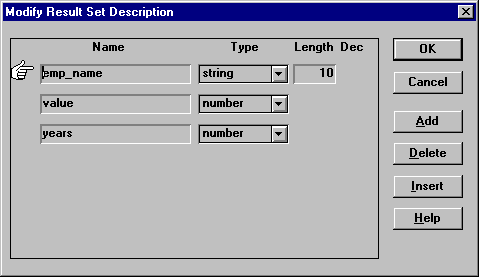
Figure 1
- In the datawindow painter Click on Rows / Data Menu option and add data as shown in Fig
2. Change the graph title, category title and value title by right clicking on it.
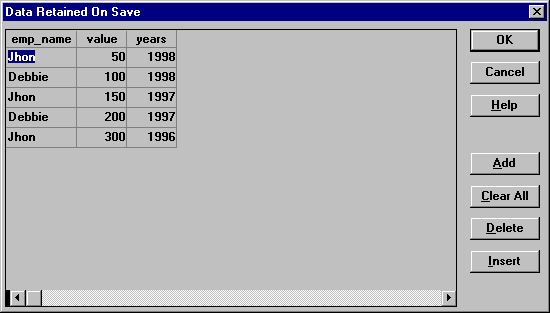
Figure 2
- Preview the datawindow, do SaveAs to Salesrpt.psr and Save the datawindow as d_graph.
- Create a window with one datawindow control on it and one command button to close the
window. Don't associate any DataObject to the datawindow control. In the open event of the
window write the script as follows,
dw_graph.dataobject = Message.StringParm
- In the application open event write the script as follows,
OpenwithParm(w_open_psr, CommandParm() )
CommandParm() functions catches the command line arguments and returns as a string.
This function can not be tested during development time. You have to create an exe to test
this function. There one more function like this in PowerBuilder. is SetLibraryList().
- Now create an exe as PBViewer.exe.
- Now create a new file type as following in explorer
- Double-click the My Computer icon.
- On the View menu, click Options, and then click the File Types tab.
- To create a new file type, click New Type. To modify the settings for an existing file
type, click the type, and then click Edit.
- Specify a description for the file type and the filename extension associated with this
type of file.
- Click New to define an action for this file type. If you are modifying an existing type,
you can click the command in the Action box that you want to modify, and then click Edit.
- Specify the action that you want to define, such as Open or Print, and the command that
should run to complete this action. In the command line, type our "PBViewer.exe"
After doing that double click on our salesrpt.psr and see what happens.
|