| Home | Previous Lesson: Multiple Table DataWindow Update Service Next Lesson: Checking the 'Required Columns' Service |
Sometimes, you might come across a situation, where you need to display lots and lots of information. To begin with, you display the high level summary information, say, a list of customers. When the user selects a customer, display all the sales orders for the selected company. When the user selects a sales order, display all the items in the sales order. When the user selects an item in the sales order, display the item (product) details and so on.
We can display all this information at the beginning itself, but, it won�t be efficient. It�s always better to show the information required by the user.
In situations like this, typically you use multiple DataWindows. There are two methods of displaying the data. One is, display a different window for each level. Another style is, display it in the same window.
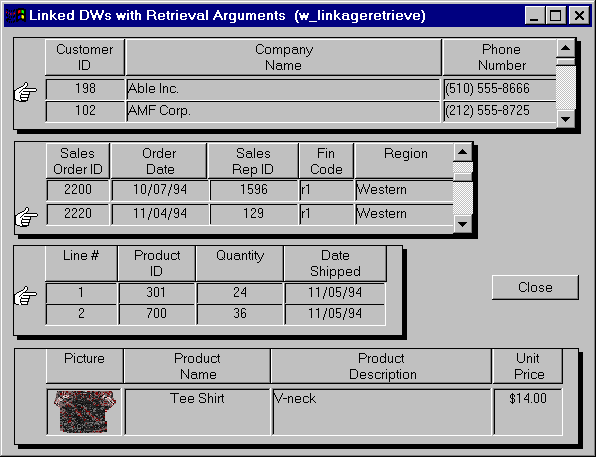
The following picture is from the ExampPFC application that comes with PFC. We changed the DataWindow borders, so that, you can clearly see four DataWindows in the window.
In the above example, the top DataWindow that displays the high-level summary information is called the master DataWindow. All other DataWindows are subordinates to the top one, i.e., the third one is a subordinate to the second one and so on. In situations like this, typically, we write code to the clicked/double-clicked event of the DataWindow and retrieve data from the subordinate DataWindows. PFC also does the same thing, however, it gives you choices in the functionality, with minimal code.
If you want to use the PFC linkage service, first thing you need to do is turn on the linkage service, for all the DataWindows that is in the link chain using the following syntax:
DataWindowControlName.of_SetLinkage(TRUE)
The next step is, to link each subordinate to the its immediate master. In the above example, you need to link the second one with first, third with second etc.:
dw_SalesOrder.inv_Linkage.of_LinkTo(dw_cust)
dw_LineItems.inv_Linkage.of_LinkTo(dw_SalesOrder)
dw_Pictures.inv_Linkage.of_LinkTo(dw_LineItems)
The next step is, to define a relationship between these DataWindows. For example, cust_id is the relationship between the first and second, sales_order_no is for the second and the third and so on.
dw_Cust.inv_Linkage.of_SetArguments("cust_id", "cust_id")
In the above code, the first argument is the key in the master DataWindow and the second one in the subordinate DataWindow. The final step is to set the style. You can set the style using the inv_Linkage.of_SetUseColLinks() function. There are three different styles that are available.
In the first style, the data in the subordinate DataWindow is retrieved depending on the retrieval arguments. For example, when you select a customer, PFC automatically retrieves the data from the immediate subordinate, just for that customer only. The advantage of this method is that, less memory is needed. Since, only the required data in the subordinate DataWindow is retrieved.
In the second style, PFC retrieves the data from all the DataWindows, including all subordinate DataWindows. As soon as you select a record in the master DataWindow, PFC automatically scrolls the appropriate record in the subordinate DataWindow and makes it the first record in the DataWindow display. For small data, this method is good, because, PFC doesn�t have to retrieve every time, it just has to scroll to the right row.
In the third style, PFC retrieves the data similar to the second style. In this method, instead of scrolling to the correct row in the subordinate DataWindow, depending on the selected record in the master DataWindow, PFC filters the data in the subordinate DataWindow and displays only that data.
|
Parameter |
Description |
|
1 |
Use Filter method |
|
2 |
Use Retrieval method |
|
3 |
Use Scroll to Row method |
After you update the linked DataWindows, just call the pfc_Save event for the master DataWindow. Sometimes, you may want to update the bottom most subordinate DataWindow first and update the immediate master and so on (Bottom to Top approach). Then call the of_SetUpdateBottomUp(TRUE) function. Call the same function with FALSE as the parameter to update DataWindows from top to bottom. The latter one is the default one.
At any moment of time, if you want to unlink the DataWindows, call the of_UnLink() function.
One last point, the following function sets the transaction object to all the DataWindows that are in the chain.
MasterDataWindowName.inv_Linkage.of_SetTransObject(SQLCA)
| Home | Previous Lesson: Multiple Table DataWindow Update Service Next Lesson: Checking the 'Required Columns' Service |