| Home | Previous Lesson: Filter Service Next Lesson: DropDown DataWindow/ListBox Search |
PFC comes with a good find & replace service, which a typical PowerBuilder application won�t provide. You have to write just a single line of code as shown below:
dw_product.of_setfind (TRUE)
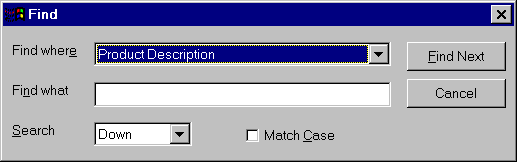
That�s all, nothing more. (We assume here that you are using a menu that is inherited from the PFC menu). Run the application, and select Edit > Find from the menu and you will see a dialog box as shown below.
You can search Up/Down and can choose to match the case or not. There is another option that Powersoft can add to this, i.e., "Find Whole Words Only" option.
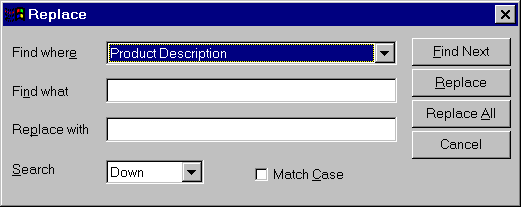
T he above picture shows the Find & Replace service dialog box. It�s really a cool feature of PFC. It would be really great if they can provide selecting multiple columns. For example, a DataWindow with full of text columns and user wants to find it in any column and replace. It would be easy for the user if he is able to do that. This version of PFC doesn�t support it.
Similarly, this service can be enhanced to allow the user build search expressions similar to the filter expressions, which is missing in the current version.
if you want to display the Find dialog box from another event/ function, call:
dw_product.event PFC_Finddlg()
// OR
dw_product.inv_find.event PFC_Finddlg()
If for any reason, if you want to enable find service, but not 'find & replace' service, you can turn it off by calling:
dw_product.inv_find.of_SetAllowReplaceDlg(false)
Similarly, you can turn off find service alone:
dw_product.inv_find.of_SetAllowFindDlg(false)
| Home | Previous Lesson: Filter Service Next Lesson: DropDown DataWindow/ListBox Search |