| Home | Previous Lesson: Sorting DataWindow In Windows 95 Way Next Lesson: Custom Sort |
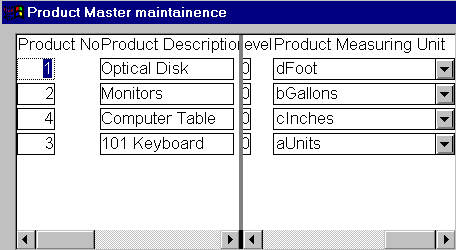
As you know, in DataWindows, when you use edit styles such as DDDW, you can make use of two values. One is data value (stored in the database) and the other is the display value. Similarly, when you use EditMask edit style, you can use code tables for the same purpose. For example, we are using DDDW edit style for product_measurement_unit in the w_product_master window. When you sort the DataWindow on a column with the above mentioned edit styles, PowerBuilder automatically sorts it on the data value. For example, if you sort on product_measurement_unit, PowerBuilder sorts on the data value as shown below.
In the above picture, we changed the product_measurement_unit for demonstration purposes and also we prefixed one character to the description in the units table. Remember that we didn�t change the data value, i.e., unit in the units table. Then, we sorted the DataWindow on the product_measurement_unit. PowerBuilder sorted the DataWindow on the data values, by default. However, for the user who isn�t a PowerBuilder programmer, it looks odd, because, what is seen was not asked. We need to sort on the display values and not on the data values.
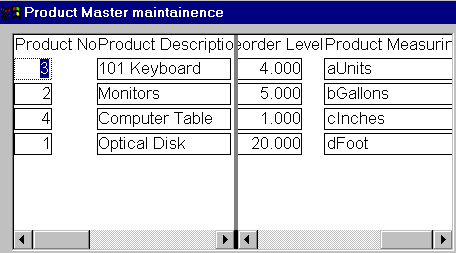
In the above picture, you can see the DataWindow sorted on the display value. How did we do that? Just one line of code:
dw_product.inv_sort.of_SetUseDisplay(TRUE)
If you are using a menu that is inherited from the PFC menu, you don�t have to code in the menu�s clicked event and in the window (other than the code explained above). You also don�t have to define any user-defined events for the purpose of sort service.
| Home | Previous Lesson: Sorting DataWindow In Windows 95 Way Next Lesson: Custom Sort |