| Home | Previous Lesson: Cut, copy, Paste (Special), Clear Services Next Lesson: Sorting DataWindow In Windows 95 Way |
PFC�s sort service provides lot of functionality, and you can configure this service in any PowerBuilder�s application. To use the DataWindow services, use the u_dw user object instead of a standard DataWindow control. u_dw has a of_SetSort() function, which takes a boolean parameter. Calling the function with a true parameter turns on the sort service and creates the sort service. The sort service object n_cst_dwsrv_sort is declared as an instance variable at u_dw.
To enable the sort functionality, simply turn on the sort functionality by calling the of_SetSort() function.
dw_product.of_SetSort( TRUE)
If you run the application, you will see the standard sort criteria dialog box, as shown in the following picture.
With this default behavior, you can�t take real advantage of the sort service. You can ask PFC to display its dialog box, instead of the standard sort criteria dialog box.
// sort types:
// DEFAULT or 0  PowerBuilder Sort dialog box (default)
// DRAGDROP or 1  PFC's w_sortdragdrop dialog box
// SIMPLE or 2  PFC's w_sortsingle dialog box
// DROPDOWNLISTBOX or 3  PFC's w_sortmulti dialog box
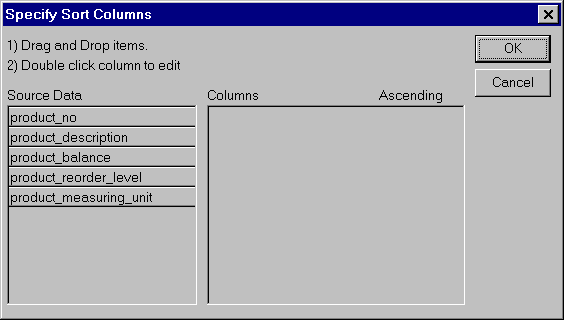
dw_product.inv_sort.of_setStyle(1)
OR
dw_product.inv_sort.of_setStyle(dw_product.inv_sort.DRAGDROP)
The above code turns on the Drag & Drop style dialog box, instead of the standard PowerBuilder sort criteria dialog box.
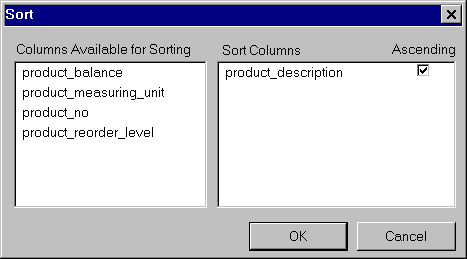
The default PowerBuilder's sort criteria dialog box and style 1 of sort service are similar except the 3D difference. You may ask why PFC is duplicating the existing functionality? Good question. The default mode doesn't allow you to restrict the user sorting on few columns, instead it always displays all columns. That's why, they created one, even though it looks similar. Also, the PFC one allows sorting by column's DataWindow name/Database name/DataWindow column header text.
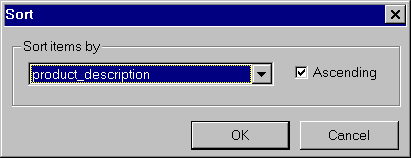
In any situation, if you want to allow the user to sort only on one column, call the function with 2 as the parameter.
dw_product.inv_sort.of_SetStyle(2)
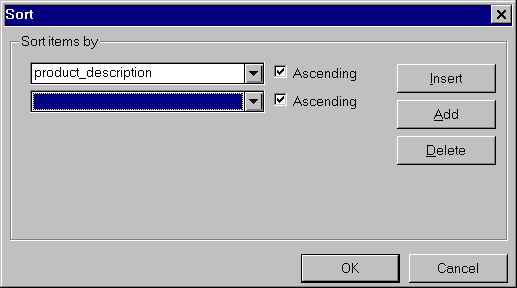
The following picture shows the DDLB style sort dialog box, similar to the above, but allows multi column sorting.
dw_product.inv_sort.of_SetStyle(3)
If you observe the code, you will find that we are calling of_SetSort() function, defined at the u_dw user object. However, we are calling the of_SetStyle() function from the service (declared as an instance variable). Once you decide the sort dialog box style, you can use other functionality.
Some DataWindows like the one we used in the w_transactions window have some hidden columns. When you call the standard dw_tran_header.Sort() function, PowerBuilder displays all the columns in the sort dialog box, irrespective of the visible property status. When you use any of the PFC sort criteria dialog box, you can choose not to display hidden columns, as shown below:
dw_product.inv_sort.of_SetVisibleOnly(TRUE)
Before we jump to other topics, you need to understand few things about DataWindow. You might have observed some while coding, but, we want to make sure that you know it.
Let�s start with a simple example. Say, you have painted a DataWindow with one column, product_description from product_master. When you refer to this column in the Modify() function, you refer to it either using the column number or column name. When you refer to the column, you refer it as product_description. This product_description is called "DataWindow column name". When you are in the DataWindow painter, if you see the properties of this column, you will find the name as product_description. You can change this name to any other name you wish, as long as you follow the naming conventions.
If you select Rows > Column Specifications from the menu, you will see one more property, "database name" and you will see �Product_master.Product_description' under the "database name" heading. When PowerBuilder sends SQL statements, it uses this name. This is called "database column name". You can�t change this in PowerBuilder.
For each column you place in the DataWindow, PowerBuilder creates a label/header depending on the presentation style. By default, the name of the label/header would be the DataWindow column name with a "_t" suffix. So, for product_description the label/header name would be product_description_t. You can change this, if you want. The text value of this label/header would be the column name with the underscores replaced by spaces, "product description". This is called "column header name".
PowerBuilder by default displays the "DataWindow column names" in the sort criteria dialog box. You have no option of using a different one. However, you have a choice of using any of the above three, when you use the PFC sort dialog box:
dw_product.inv_sort.of_SetColumnNameSource(3)
In the above code we are asking PowerBuilder to display column headers instead of DataWindow column names.
|
Parameter |
Meaning |
|
0 |
Use standard Datawindow column names (default) |
|
1 |
Use database column names |
|
2 |
Use column header names |
// These are defined in pfc_n_cst_dwsrv
// constant integer DEFAULT = 0
// constant integer DBNAME =1
// constant integer HEADER = 2
dw_product.inv_sort.of_SetColumnDisplayNameStyle(2)
OR
dw_product.inv_sort.of_SetColumnDisplayNameStyle(&
dw_product.inv_sort.HEADER) |
When you use 2 as the parameter, PFC assumes that the "column header names" are using the default "_t" suffix. If it doesn�t find any name with this convention for the columns, it uses the "DataWindow column name". If you are using a different suffix other than "_t", let PFC know about it by calling the of_SetDefaultHeaderSuffix() function.
dw_product.inv_sort.of_SetDefaultHeaderSuffix(&
"Your Suffix Here")
Some times, you don�t want the user to sort on some particular column. You can prevent him by calling of_SetExclude() function.
// Declare an INSTANCE variable by selecting Declare/Instance
// Variables, at the window as shown below.
String is_ExcludeColumns[]
// Write the following code.
is_ExcludeColumns[1] = "product_description"
dw_product.inv_sort.of_SetExclude(is_ExcludeColumns[])
In the above example, we are excluding product_description from the sort dialog box.
| Home | Previous Lesson: Cut, copy, Paste (Special), Clear Services Next Lesson: Sorting DataWindow In Windows 95 Way |