| Home | Previous Lesson: Method to Apply Changes to the Database Next Lesson: Connecting to Jaguar CTS from PowerBuilder Application |
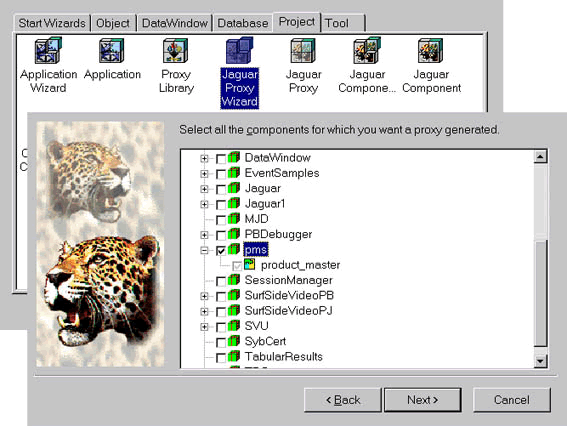
Select File > New menu option and double click on Jaguar Proxy Wizard icon. Click on Next icon, select product.pbl and specify p_jag_proxy for the project name, specify Jaguar connection information as specified earlier. In the Select Component wizard, check pms folder as shown in the picture. You may want to specify a different PowerBuilder library for storing proxy objects. Check first two options in the Specify Build Options page and complete the wizard.
This wizard has just created a PowerBuilder project object that will generate proxy objects when you run it. So, open the n_jag_proxy project and select Design > Build Project menu option. If you explore the pms-proxy.pbl, you will find two objects, one proxy object for the n_product_master and a structure object that allows you to pass NULL values to that proxy's methods. Now is the time to include the proxy library in the Application's library list.
| Home | Previous Lesson: Method to Apply Changes to the Database Next Lesson: Connecting to Jaguar CTS from PowerBuilder Application |