| Home | Previous Lesson: Drag-n-Drop Events Next Lesson: Drag-n-Drop Functions |
There are two attributes related to drag-n-drop functionality. One is DragIcon and the other one is DragAuto.
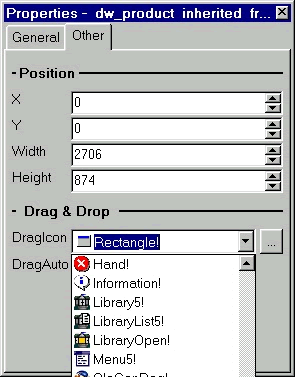
DragIcon specifies the icon to display when the object is in drag mode. Remember, in the PowerBuilder sort criteria dialog box, when you drag a column to drop on the criteria box, PowerBuilder displays a small rectangle along with the mouse pointer. That small rectangle is the drag icon.
What if I don't specify any drag icon? Well, when the object is put in the drag mode, PowerBuilder displays the outlines of the object, rectangle, as the icon along with the mouse pointer. How big the icon would be? It's exactly the same size of the object. If you drag a DataWindow control that has no DragIcon specified, you will see the icon equivalent to the size of the DataWindow control.
Where can I specify the DragIcon? You can specify in the painter, or in the script. When you go to the properties dialog box to any window control that is inherited from the Drag object, you will see Drag Drop tab page.
You can use from the existing PowerBuilder's stock icons, such as Rectangle!, StopSign!. These stock icons are part of PowerBuilder DLLs, so when you deploy the application you don't have distribute these icons. With version 5.0, PowerBuilder is shipping a lot of icons and bitmaps and you can find them in the art gallery. If you have painted your own icons, you can also use them ( use the Browse button).
You can also change these icons at runtime in the script:
This.DragIcon = "c:\workdir\images\record.ico"
This.DragIcon = "record.ico"
This.DragIcon = "rectangle!"
When you use one of the PowerBuilder stock icons, you need to suffix the icon name with the exclamatory mark "!" as shown in the above example. If you want to paint icons/bitmaps on your own, you don't have spend money to purchase painting tools. PowerBuilder comes with "Watcom Image Editor" which is really a lot powerful than PaintBrush.
DragAuto is a boolean attribute. If this attribute is set to true, PowerBuilder displays the drag icon as soon as the user clicks on the object and user can start dragging the object. Don't set this option to true for objects like DataWindow controls when they are designed for data entry. Why? Because, as soon as the user clicks on the DataWindow, the object is set into the drag mode and the code that you wrote for the Clicked event won't get executed. That's why, start the drag mode in the script in the appropriate event as shown below:
This.DragAuto = True
| Home | Previous Lesson: Drag-n-Drop Events Next Lesson: Drag-n-Drop Functions |