| Home | Previous Lesson: Powersoft Reports Next Lesson: New Dot Notation Syntax For DataWindow Objects |
To read and change the attributes of a DataWindow object, we call describe() and modify() function. Describe() returns the value of the specified attribute. For example, the following statement returns whether the DataWindow is in the query mode or not.
String ls_QueryModeCheck
ls_QueryModeCheck = &
	dw_product.Describe( "datawindow.querymode" )
The first value in the argument is the object name and the second one is the attribute name. There are few attributes that are applicable for whole DataWindow object. For example, querymode, printpreview. In that case, the first argument is literally "DataWindow". Say, you want to find whether the font for the product_description field is italic or not, then we need to replace "DataWindow" with the column name, product_description in the above code.
String ls_FontItalicCheck
ls_FontItalicCheck = dw_product.Describe( &
	"product_description.font.italic" )
While dealing with the column, you can specify the column number instead of column name. For example, in the dw_product DataWindow control, the second column is product_description, the function call would be:
String ls_FontItalicCheck
ls_FontItalicCheck = &
	dw_product.Describe( "#2.font.italic" )
When you use the column number, you need to prefix the column number with pound sign as shown in the above example. The return value of Describe() is always a string datatype. So, when you are expecting a numeric or other datatype, you need to convert it into the desired datatype.
The correctness of the argument is not checked at compile time. If there is anything wrong with the argument, Describe returns "!".
We use Modify() function to change the value of an attribute. The following code sets the DataWindow in the query mode:
dw_product.Modify( "DataWindow.QueryMode=yes" )
The following code changes the product_balance field:
dw_product.Modify("product_balance.Format='[red] &
$#,###,##0.00'")
The following code sets the retrieval argument of a nested report.
ls_Arg = ".Nest_Arguments=((~"" + &
	string( lEmpIdToPrint ) + "~"))"
dw_print.Modify( "r_emp_details" + lStrArg )
dw_print.Modify( "r_emp_vacations" + lStrArg )
dw_print.Modify( "r_emp_wages" + lStrArg )
dw_print.Modify( "r_emp_docs" + lStrArg )
The above example is taken from the Payroll project. In the employee data entry window we have four DataWindows. Since we can't print all those four DataWindows together as we see on the window, we are using a composite DataWindow that has four DataWindows. Each of the DataWindow has a retrieval argument of the employee id.
The retrieval argument of a nested DataWindow can't be specified with a normal Retrieve() function. So, we need to use Modify() function to set the retrieval argument of each of the nested DataWindow. To do this, we need to specify the nested DataWindow object name and ".Nest_Arguments" property and the value. We are use tilde sign "~" to use special characters in the quotations. For example, if you want to use a tab character, you need to use "~t". Similarly to represent a double quotation in a double quotation, you need to use "~"" tilde before the quotation.
You are not limited to using a constant value in the Modify() function. You can assign a value through an expression that PowerBuilder evaluates during execution, instead of having to directly assign a value. The following is the syntax:
' DefaultValue ~t DataWindowExpression '
DefaultValue is the value to assign the property if the DataWindow expression doesn't return a valid value. Please note that, you should separate the default value and DataWindow expression with a tab character.
dw_product.Modify( "product_balance.Color = '0 ~t &
if( " product_balance < product_reorder_level,255,0)'")
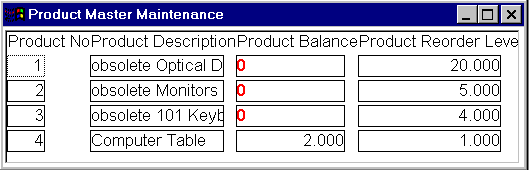
The above statement changes the color of product_balance to red if the balance is less than the reorder level, otherwise, the color is set to black.
dw_wages.Modify( "effective_date.TabSequence=0" )
In the above example, we are setting the tab sequence of effective_date column to zero. That means user can't edit that field. That's fine. But, If you want to allow the user to edit the field in the new records, but want to protect in the existing records, the above statement won't work. We need to use an expression.
dw_wages.Modify("gross_wages.Protect='1~tIf( &
		IsRowNew(),0,1)'")
When you set the tab sequence of a field, it applies to the field in all records. Instead, if you use protect attribute, you can apply at a record level. In the above example, we are protecting the field if it's not a new record. The above two examples would be useful for you in the upcoming project "Payroll Project", which you need to code from beginning.
dw_product.Modify( "product_balance.Color = '0 ~t " + &
	"if(product_balance < product_reorder_level,255,0)'" + &
	"product_balance.Font.Weight = '400 ~t " + &
	"if(product_balance < product_reorder_level, &
	700,400)'" + & "product_balance.Alignment = '1 ~t" + &
	"if(product_balance < product_reorder_level,0,1)'")
You are not limited to one expression per Modify() function. You can use multiple expressions separated by a single space between each expression. In the above statement we are setting the product_balance to red color with bold font and left aligned. We have used three expressions separated by a single space.
You can also use CREATE statement to add objects to the DataWindow at run-time. The following example is taken from the help, which adds an ellipse to the DataWindow.
dw_1.Modify( "CREATE ellipse(band=detail x='1229' " + &
	" y='0' height='112' width='739' brush.hatch='6' " + &
	" name=oval2 "brush.color='65535' pen.style='0' " + &
	" pen.width='10' pen.color='0' background.mode='1' " )
You can also destory the elements from the DataWindow using DESTORY statement.
dw_1.Modify("DESTROY oval2")
Destroying a column by name does not remove the column data from the buffer. It just removes the column from the display.
dw_1.Modify("DESTROY emp_id")
If you want to remove the column's data also from the buffer, include the keyword COLUMN.
dw_1.Modify("DESTROY COLUMN emp_id")
| Home | Previous Lesson: Powersoft Reports Next Lesson: New Dot Notation Syntax For DataWindow Objects |