| Home | Previous Lesson: Predefined Keys Next Lesson: Summary |
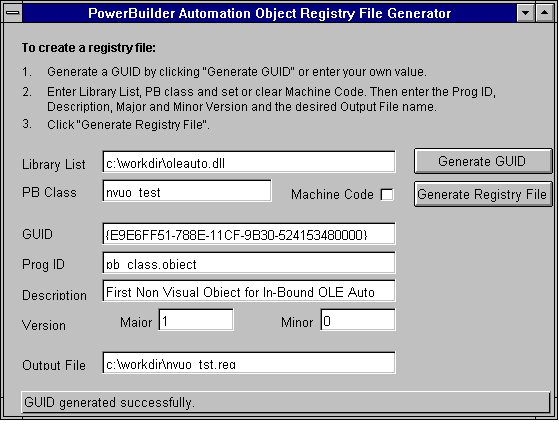
PowerBuilder object exposes couple of methods in relation with .REG file creation, those are GenerateGUID() and GenerateRegFile(). Before you create the .REG file, you need to generate GUID.
OleObject PBObject
String GUID
Long lResult
PBObject = Create OLEObject
lResult = PBObject.ConnectToNewObject( "PowerBuilder.Application" )
If lResult < 0 Then
    MessageBox( "Connection Error", lResult )
Else
    PBObject.LibraryList ="c:\workdir\ole2auto.dll"
    PBObject.MachineCode = false // This is a pCode object
    result = PBObject.GenerateGUID(REF GUID)
    If lRresult < 0 Then
    MessageBox( "UID Generation Error", result )
    Else
    LResult = PBObject.GenerateRegFile( GUID, &
       "nvuo_test", "pb_class.object", 1, 0, &
       "First Non Visual Object for In-Bound OLE Auto",&
       c:\workdir\nvuo_tst.reg")
    End If
End If
The above example declares a OLEObject variable and creates OLEObject and it connects to the Application's type in PowerBuilder Object by using familiar function ConnectToNewObject(). Later it sets some attributes for the OLEObject. PowerBuilder object exposes few attributes:
LibraryList: Contains library list to be searched for classes for creating classes.
MachineCode: This boolean attribute specifies, whether it is pCode or machine code. Setting to True means, it is machine code.
These two attributes are ignored after creating the first instance and these attributes need to be set before creating the first instance. Once you set these attributes, you need to call GenerateRegFile(). This function takes the following arguments:
|
Argument |
Data Type |
Notes |
|
GUID |
String |
Globally Unique Identifier that is created by GenerateGUID() |
|
ClassName |
String |
NVO Class Name that you created |
|
ProgID |
String |
OLE Programmatic Identifier. OLE Clients use this name for programming. |
|
MajorVersion |
Integer |
Major Version |
|
MinorVersion |
Integer |
Minor Version |
|
Description |
String |
Description to be displayed by OLE |
|
TargetFile |
String |
.REG file name create |
Once you execute this script and open the generated .REG file, it looks something like:
REGEDIT
;;;;;;;;;;;;;;;;
;
; Registry entries for pb_class.object
;
; CLSID = {E9E6FF51-788E-11CF-9B30-524153480000}
;
;;;;;;;;;;;;;;;;
; Version independent entries:
HKEY_CLASSES_ROOT\ pb_class.object = First Non Visual Object for In-Bound OLE Auto
HKEY_CLASSES_ROOT\ pb_class.object \CLSID = {E9E6FF51-788E-11CF-9B30-524153480000}
HKEY_CLASSES_ROOT\ pb_class.object \CurVer = First Non Visual Object for In-Bound OLE Auto.1
HKEY_CLASSES_ROOT\ pb_class.object \NotInsertable
; Version specific entries:
HKEY_CLASSES_ROOT\ pb_class.object.1 = First Non Visual Object for In-Bound OLE Auto
HKEY_CLASSES_ROOT\ pb_class.object.1\CLSID = {E9E6FF51-788E-11CF-9B30-524153480000}
HKEY_CLASSES_ROOT\ pb_class.object.1\NotInsertable
; CLSID entries:
HKEY_CLASSES_ROOT\CLSID\{E9E6FF51-788E-11CF-9B30-524153480000} = First Non Visual Object for In-Bound OLE Auto
HKEY_CLASSES_ROOT\CLSID\{E9E6FF51-788E-11CF-9B30-524153480000}\ProgID = pb_class.object.1
HKEY_CLASSES_ROOT\CLSID\{E9E6FF51-788E-11CF-9B30-524153480000}\VersionIndependentProgID = pb_class.object
HKEY_CLASSES_ROOT\CLSID\{E9E6FF51-788E-11CF-9B30-524153480000}\InProcServer32 = PBROI050.DLL
HKEY_CLASSES_ROOT\CLSID\{E9E6FF51-788E-11CF-9B30-524153480000}\NotInsertable
HKEY_CLASSES_ROOT\CLSID\{E9E6FF51-788E-11CF-9B30-524153480000}\Programmable
HKEY_CLASSES_ROOT\CLSID\{E9E6FF51-788E-11CF-9B30-524153480000}\PowerBuilder\ClassName = nvuo_test
HKEY_CLASSES_ROOT\CLSID\{E9E6FF51-788E-11CF-9B30-524153480000}\PowerBuilder\LibraryList =
HKEY_CLASSES_ROOT\CLSID\{E9E6FF51-788E-11CF-9B30-524153480000}\PowerBuilder\BinaryType = PCODE
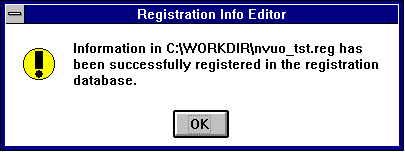
To merge this file with registry, either run REGEDIT /M C:\WORKDIR\NVUO_TST.REG or just double click on this file in the FileManger. You will be notified about successful registration. After this, you can use this object similar to the "Word.Document" that you have used with ConnectToNewObject().
OLEObject lOLEObject
Long lRetStatus
lOLEObject = create OLEObject
lRetStatus = lOLEObject.ConnectToNewObject( "pb_class.Object" )
If lRetStatus < 0 Then
		MessageBox( "Error Info.", lRetStatus )
Else
		lOLEObject.uo_DisplayMessage( "Calling from " + &
OLE Client App." )
End If
lOLEObject.Disconnect()
Destroy lOLEObject
You will learn about distributing OLE Server object later in "Application Deployment" session.
| Home | Previous Lesson: Predefined Keys Next Lesson: Summary |