The following is the actual code generated by PowerBuilder.
// File: dw-html-table-pb50.html
| Home | Previous Lesson: Course 3:: Session 29 :: Page 80 Next Lesson: Course 3:: Session 29 :: Page 100 |
DataWindows - HTML Tables
You can save the DataWindow as
HTML table and include that code in the HTML page. This is the easiest way of displaying your PowerBuilder reports on the web. When you are in DataWindow preview, select File/Save Rows As from the menu and select HTML Table for the Save as Type prompt. Then insert the saved file in your HTML file. Similarly, you can call SaveAs() for the DataWindow as shown below:dw_product.SaveAs( 'Product Maintenance.html', HTMLTable!, True )
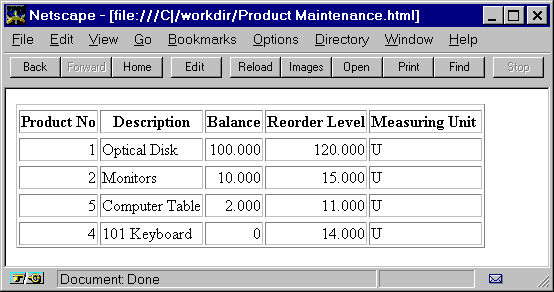
The following is the table that you will see when you save the
d_products_maint DataWindow as the HTML table.
The following is the actual code generated by PowerBuilder.
// File: dw-html-table-pb50.html
<table>
<tr><th align=center>Product No<th align=center>Description<th
align=center>Balance<th align=center>Reorder Level<th
align=center>Measuring Unit
<tr><td align=right>1<td align=left>Optical Disk<td align=right>100.000<td align=right>120.000<td align=left>Units
<tr><td align=right>2<td align=left>Monitors<td align=right>10.000<td align=right>15.000<td align=left>Units
<tr><td align=right>3<td align=left>101 Keyboard<td align=right>0<td align=right>14.000<td align=left>Units
<tr><td align=right>4<td align=left>xComputer Table<td align=right>2.000<td align=right>11.000<td align=left>Units
</table>
PowerBuilder automatically saves headers for the table columns. This method of
deploying is good when you have just the data, i.e., no pictures and graphs. In this
method, users don’t have to have special softwares to view the data, since it’s
in the HTML format.
PowerBuilder uses PowerBuilder 6.0 adds the If you make the column heading in the DataWindow to span multiple rows by adding the
'~r' character (as displayed in the above DataWindow for 'Product No' column),
PowerBuilder adds a line break (literally) in the HTML code. However, the browser ignores
that line break and displays the text as one line as shown in the above picture, because,
you need to use PowerBuilder 6.0 HTML table generation also supports style sheets. The following is the
HTML code generated by PowerBuilder 6.0 for the above DataWindow.
// File: dw-html-table-pb60.html
<title></title>
<STYLE TYPE="text/css">
<!--
.0{COLOR:#000000;BACKGROUND:#ffffff;FONT-STYLE:normal;FONT-WEIGHT:normal;FONT:10pt
"Arial", sans-serif;TEXT-DECORATION:none}
.5{COLOR:#000000;BACKGROUND:#ffffff;FONT-STYLE:normal;FONT-WEIGHT:normal;FONT:10pt "Arial", sans-serif;TEXT-DECORATION:none}
.6{COLOR:#000000;BACKGROUND:#ffffff;FONT-STYLE:normal;FONT-WEIGHT:normal;FONT:10pt "Arial", sans-serif;TEXT-DECORATION:none}
-->
</STYLE>
<table border>
<tr>
<tr><th
ALIGN=center>Product No<th ALIGN=center>Description<th
ALIGN=center>Balance<th ALIGN=center>Reorder Level<th
ALIGN=center>Measuring Unit You might have observed that though the code was generated for the Style sheets, the
classes in the style sheets are not used in the actual HTML code. To make PowerBuilder
generate the HTML that takes advantage of the style sheets, you need to turn on dw_product.Modify("datawindow.HTMLTable.GenerateCSS='yes'")
<tr>
<tr><td ALIGN=right>1<td>Optical Disk<td ALIGN=right>100.000<td
ALIGN=right>120.000<td>U
<tr>
<tr><td ALIGN=right>2<td>Monitors<td ALIGN=right>10.000<td
ALIGN=right>15.000<td>U
<tr>
<tr><td ALIGN=right>5<td>Computer Table<td ALIGN=right>2.000<td
ALIGN=right>11.000<td>U
<tr>
<tr><td ALIGN=right>4<td>101 Keyboard<td ALIGN=right>0<td
ALIGN=right>14.000<td>U
</table>
Now, if you browse the HTML using a browser that supports Style Sheets
(IE 3.0 or Netscape 4.0 or higher), you will see the table as shown below:
The following is the new HTML code:
// File: dw-html-table-pb60-css.html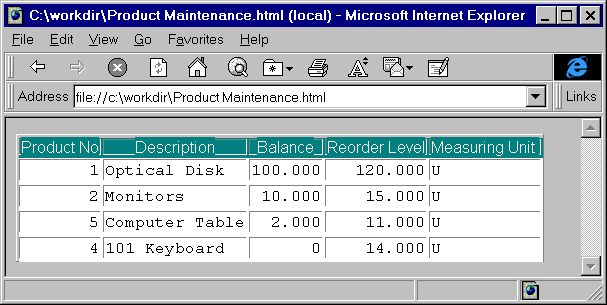
<title></title>
<STYLE TYPE="text/css">
<!--
.0{COLOR:#fffbf0;BACKGROUND:#008080;FONT-STYLE:normal;FONT-WEIGHT:normal;FONT:10pt "Arial", sans-serif;TEXT-DECORATION:none}
.5{COLOR:#000000;BACKGROUND:#ffffff;FONT-STYLE:normal;FONT-WEIGHT:normal;FONT:10pt "Courier New", sans-serif;TEXT-DECORATION:none}
.6{COLOR:#000000;BACKGROUND:#ffffff;FONT-STYLE:normal;FONT-WEIGHT:normal;FONT:10pt "Courier New", sans-serif;TEXT-DECORATION:none}
-->
</STYLE>
<table nowrap border=1>
<tr>
<tr><td CLASS=0 ALIGN=center>Product No<td CLASS=0
ALIGN=center>Description<td CLASS=0 ALIGN=center>Balance<td CLASS=0
ALIGN=center>Reorder Level<td CLASS=0 ALIGN=center>Measuring Unit
<tr>
<tr><td CLASS=5 ALIGN=right>1<td CLASS=6>Optical Disk<td CLASS=5
ALIGN=right>100.000<td CLASS=5 ALIGN=right>120.000<td CLASS=6>U
<tr>
<tr><td CLASS=5 ALIGN=right>2<td CLASS=6>Monitors<td CLASS=5
ALIGN=right>10.000<td CLASS=5 ALIGN=right>15.000<td CLASS=6>U
<tr>
<tr><td CLASS=5 ALIGN=right>5<td CLASS=6>Computer Table<td CLASS=5
ALIGN=right>2.000<td CLASS=5 ALIGN=right>11.000<td CLASS=6>U
<tr>
<tr><td CLASS=5 ALIGN=right>4<td CLASS=6>101 Keyboard<td CLASS=5
ALIGN=right>0<td CLASS=5 ALIGN=right>14.000<td CLASS=6>U
</table>
Do you find the difference in the code? That is the CLASS tag.
| Home | Previous Lesson: Course 3:: Session 29 :: Page 80 Next Lesson: Course 3:: Session 29 :: Page 100 |