| Home | Previous Lesson: HTML related DataWindow Object Properties Next Lesson: Deploying DataWindows as plug-ins |
There was no HTML functionality till version 5.0, but it has HTML table generation
functionality. Version 6.0 enhanced HTML table generation functionality by adding the
capability to generate code for style sheets for the HTML tables. Now, in version 6.0, you
can generate HTML forms from DataWindows. In this session let’s learn to generate
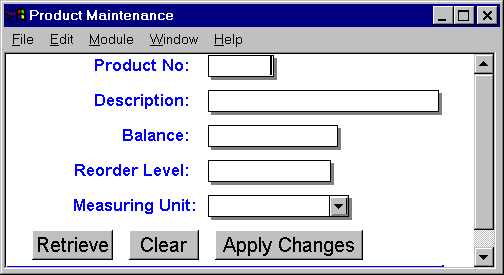
HTML form for the DataWindow shown below. You can observe that the DataWindow has
CommandButtons painted in the detail band.
Using the
GenerateHTMLForm() function, you can generate the HTML form code for a DataWindow. The following code generates HTML form code for the above DataWindow.string ls_HTML, ls_Syntax, ls_Style, ls_Action
int li_FileHandle
ls_Action = "http://www.applied-software.com/ProdMaint.cgi"
// Don't run this form when you are on the web. We don't have
// any CGI file as specified above. That is just for example.
// Object: cb_form CommandButton in w_product_maint window
// Library: product_web.pbl
// event: Clicked
dw_product.Settransobject( SQLCA )
dw_product.InsertRow(0)
dw_product.Modify( "datawindow.HTMLTable.GenerateCSS='yes'" )
dw_product.GenerateHTMLForm(ls_Syntax, ls_Style, ls_Action)
ls_HTML = "<HTML>"
+ ls_style + "<BODY><H1>Product Maintenance</H1>" + &
ls_syntax + "<HR><P>Copyright 1997 Applied Software Inc."+&
" All rights reserved</P></BODY></HTML>"
li_FileHandle = FileOpen(
"Product Maintenance.html", &
StreamMode!, Write!, LockWrite!, Replace! )
FileWrite( li_FileHandle, ls_HTML )
FileClose( li_FileHandle )
We are defining the action that needs to be taken i.e., executing the http://www.applied-software.com/ProdMaint.cgi
script when the user clicks on the button. Then GenerateHTMLForm() function is called to generate the HTML form. The first two arguments are passed
by reference that means the generated code is available in those variables. Then we are
creating the HTML page by adding few more tags --such as HTML, TITLE, BODY, etc. Then the
code is written to the 'Product Maintenance.html’
file. The following is the HTML form code generated by PowerBuilder.
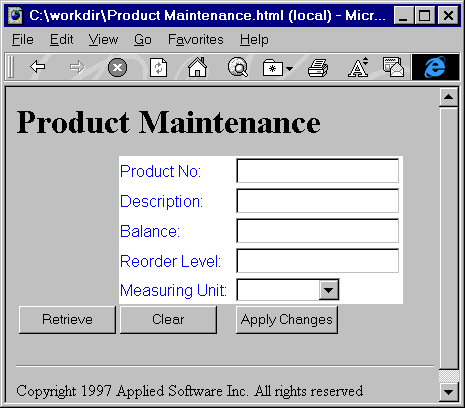
// File: dw-html-form-css.html When browsed, it looks like the following picture.
Please note that PowerBuilder generates forms only for those fields that are placed in
the detail band. It generates form for all rows that are available in the DataWindow at
the time of the HTML form generation. For example, if the DataWindow has 80 rows, the
generated form includes code for the 80 rows. Typically, a form allows us to enter one
record at a time. That is the reason why in the above example, we are not retrieving data
into the DataWindow, instead of inserting a single row into the DataWindow.
The following table describes the HTML objects that PowerBuilder generates for each
object placed in the DataWindow object.
<HTML><STYLE TYPE="text/css">
<!--
.4{COLOR:#0000ff;BACKGROUND:#ffffff;FONT-STYLE:normal;FONT-WEIGHT:normal;FONT:10pt
"Arial", sans-serif;TEXT-DECORATION:none}
.5{COLOR:#000000;BACKGROUND:#ffffff;FONT-STYLE:normal;FONT-WEIGHT:normal;FONT:10pt
"Arial", sans-serif;TEXT-DECORATION:none}
.8{COLOR:#000000;BACKGROUND:#ffffff;FONT-STYLE:normal;FONT-WEIGHT:normal;FONT:10pt
"Arial", sans-serif;TEXT-DECORATION:none}
.18{COLOR:#000000;BACKGROUND:#c0c0c0;FONT-STYLE:normal;FONT-WEIGHT:normal;FONT:12pt
"Arial", sans-serif;TEXT-DECORATION:none}
-->
</STYLE><BODY><H1>Product Maintenance</H1>
<FORM ACTION="http://www.applied-software.com/ProdMaint.cgi" METHOD=POST>
<table><tr><td>
<td CLASS=4>Product No:
<td CLASS=5><INPUT TYPE=TEXT NAME="product_no_1" VALUE="">
<tr><td><td CLASS=4>Description:
<td CLASS=8><INPUT TYPE=TEXT NAME="product_description_1" MAXLENGTH=30
VALUE="">
<tr><td><td CLASS=4>Balance:
<td CLASS=5><INPUT TYPE=TEXT NAME="product_balance_1"
VALUE="">
<tr><td><td CLASS=4>Reorder Level:
<td CLASS=5><INPUT TYPE=TEXT NAME="product_reorder_level_1"
VALUE="">
<tr><td><td CLASS=4>Measuring Unit:
<td CLASS=8>
<SELECT NAME="product_measuring_unit_1">
<OPTION VALUE="U">Units
<OPTION VALUE="P">Pounds
<OPTION VALUE="K">Kilograms
<OPTION VALUE="M">Meter
<OPTION VALUE="" SELECTED>
</SELECT><tr>
<td CLASS=18><INPUT TYPE=SUBMIT NAME="cb_retrieve_1"
VALUE="Retrieve">
<td CLASS=18><INPUT TYPE=SUBMIT NAME="cb_clear_1"
VALUE="Clear">
<td CLASS=18><INPUT TYPE=SUBMIT NAME="cb_apply_changes_1"
VALUE="Apply Changes">
</table>
</FORM><HR><P>Copyright 1997 Applied Software Inc. All rights
reserved</P></BODY></HTML>
| Column edit style | HTML element |
| CheckBox | Input element specifying TYPE=CHECKBOX |
| DropDownDataWindow | Select element with a single Option element |
| DropDownListBox | Select element with one Option element for each item in the DropDownListBox |
| Edit | Input element specifying TYPE=TEXT |
| EditMask | |
| RadioButtons | Input element specifying TYPE=RADIO |
For the DropDownListBox, PowerBuilder generates the HTML 'LISTBOX' object, and makes each element from the DropDownListBox a choice for the HTML 'LISTBOX' object. It makes the correct value as the selected element. For example, optical disks are measured in units, so, in the generated HTML form, you will see that the 'Units' option for the Measuring Unit prompt is selected. What if you generate HTML for an empty record, as shown in the above example? Well, the options are still made part of the ListBox, however, "" becomes the selected option, which makes sense.
For DropDownDataWindow edit style, PowerBuilder generates code for only one element (the option that was selected in the DataWindow at the time of HTML form generation). Similar to the above example, if you generate HTML form code for an empty record, PowerBuilder does not generate any option for the HTML 'ListBox' object.
If a DataWindow contains no records,
GenerateHTMLCode() doesn't create any HTML form code.PowerBuilder generates a unique name for each object in the DataWindow, by suffixing the record number for the fields and objects. For example, the object name for cb_retrieve CommandButton (placed on the detail band, as shown in the above picture) on record #1 is cb_retrieve1, on record #2 it is cb_retrieve2 and so on. For every CommandButton you place on the detail band, PowerBuilder generates
SUBMIT type button in the HTML code. If you need any button to clear the prompts in the form, you can either parse the generated HTML code and edit it later or add one more to the HTML code and set the type to RESET.Even though PowerBuilder generates HTML form code for all presentation styles, only presentation styles that create usable forms are
Free Form, Tabular and Grid.| Home | Previous Lesson: HTML related DataWindow Object Properties Next Lesson: Deploying DataWindows as plug-ins |