As explained earlier, a Lotus Notes view is a list of documents available in the specified Lotus Notes database. Run the 'QNOTESFE.EXE' and click on the 'Select' button.
 To run this utility, you should have
the Lotus Notes client software installed on your
machine. However, running the Lotus Notes server
itself is not necessary.
To run this utility, you should have
the Lotus Notes client software installed on your
machine. However, running the Lotus Notes server
itself is not necessary.
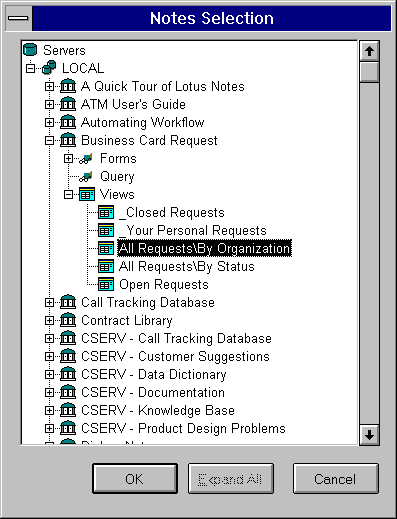
From the displayed window, you can see the TreeView control interface that has a listing of all the installed servers. You need to select the server ('LOCAL' server in the picture) and select the database ( 'Business Card Request' database in this case ). Then select the view ( 'All Requests\By Organization' in this case ) for which you want create a DataWindow object and click 'OK' button.
In the Lotus Notes view naming conventions, each slash in the view name refers to a submenu option. That means, in the above view 'By Organization' is displayed under the 'All Requests' menu.
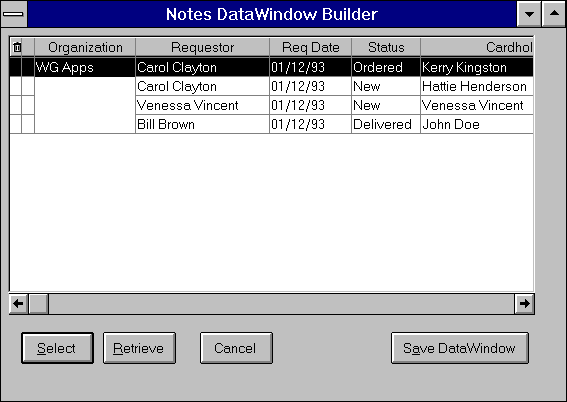
 PowerBuilder automatically brings
the view definition and paints a grid style
DataWindow for you. Even though you don't have
the full flexibility of the DataWindow painter
you can adjust the field lengths. If you wish to
see the data you can even preview the DataWindow
by clicking on the 'Retrieve'
button. Any changes done in the Lotus Notes view
definition after saving this DataWindow does not
affect this DataWindow object. You need to
recreate the DataWindow. Clicking on the 'Save
DataWindow' button will prompt you for
the PowerBuilder library name in which you want
to save the DataWindow object. Select the target
PowerBuilder library name. You will be prompted
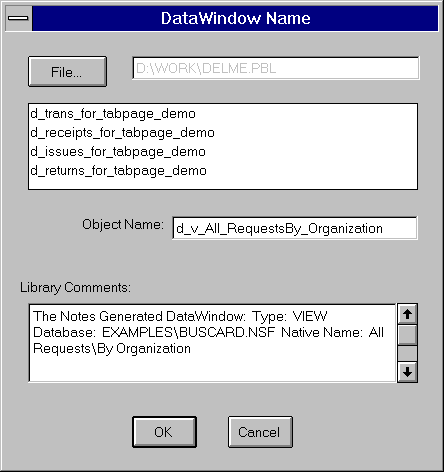
for the DataWindow name and comments. As you see
in the picture this utility automatically
generates the comments for you. This utility
proposes the DataWindow object name; Make sure to
remove illegal characters from the DataWindow
object name such as a slash. The prompt takes
care of the length of the DataWindow object name
(Max 40 characters).
PowerBuilder automatically brings
the view definition and paints a grid style
DataWindow for you. Even though you don't have
the full flexibility of the DataWindow painter
you can adjust the field lengths. If you wish to
see the data you can even preview the DataWindow
by clicking on the 'Retrieve'
button. Any changes done in the Lotus Notes view
definition after saving this DataWindow does not
affect this DataWindow object. You need to
recreate the DataWindow. Clicking on the 'Save
DataWindow' button will prompt you for
the PowerBuilder library name in which you want
to save the DataWindow object. Select the target
PowerBuilder library name. You will be prompted
for the DataWindow name and comments. As you see
in the picture this utility automatically
generates the comments for you. This utility
proposes the DataWindow object name; Make sure to
remove illegal characters from the DataWindow
object name such as a slash. The prompt takes
care of the length of the DataWindow object name
(Max 40 characters).
If you open PowerBuilder library painter, you can find the generated DataWindow object and you can edit that DataWindow object in the DataWindow painter like any other regular DataWindow object with one exception. You can't edit the data source. You can remove columns from various bands and adjust lengths and font properties and so on. If the view definition is changed in the Lotus Notes database, you need to recreate the DataWindow object.