Using the Translation Utility
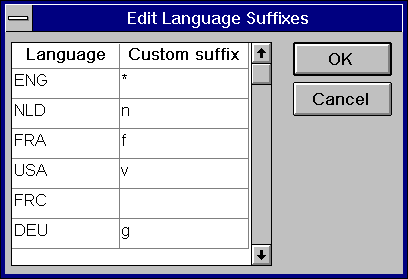
When you start Translation Assistant it automatically connects to the 'pbxldict.db' database. If the dictionary is stored in another database select File/Connect and connect to the database manually. Set the language prefixes by selecting Options/Language Prefixes from the menu.
Select whether the messages are to be read from a file or from a database by selecting Translate/Messages option.
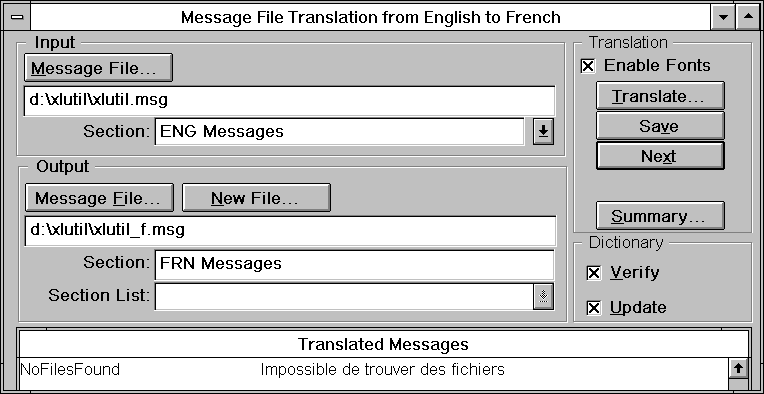
Now, translate one object at a time by selecting appropriate option from the 'Translate' menu. I choose to translate messages from English to French first. The following picture depicts the same.
Then I translated all menu objects. The following picture depicts the same.
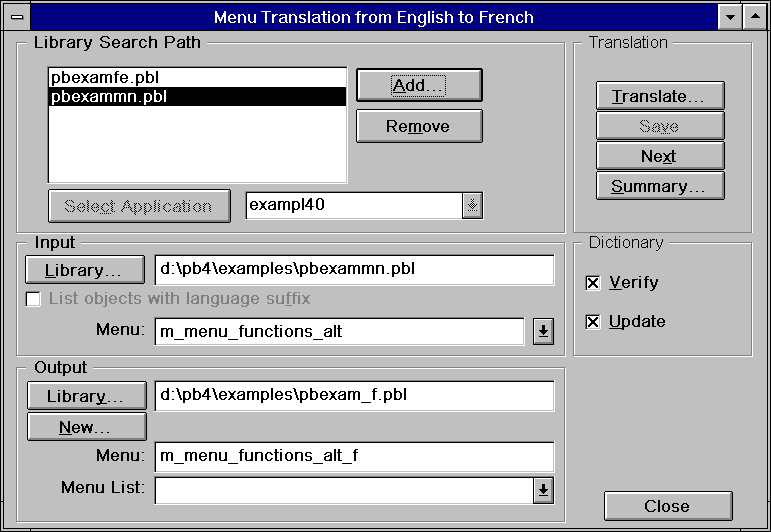
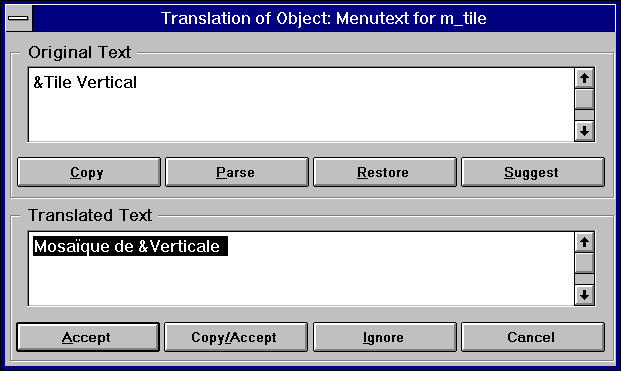
Here you need to select the library that has the application and select the application, then only you can select menu objects for translation. Once you select the menu to translate, click on the 'Translate' button. Then the Translation utility gets the nearest or exact match for the keyword or phrase and prompts you as shown below. Once you translate all the text, save the menu object in the target PowerBuilder library and continue with the next menu object. Similarly translate window, DataWindow and User Objects.
By adding the following entry in the 'xlutil.ini' file you can ask the translation utility to translate the data retained in DataWindow objects in your application.
[Options]
TranslateDataRetained=YES
This completes the translation. Upon the completion of translation, the next step is creating executables and deploying to the user.