Sometimes, you might come across a situation where you need to display lot and lot of information. To begin with, you display the high level summary information, say, list of customers. When the user selects a customer, display all the sales orders for the selected company. When the user selects a sales order display all the items in the sales order. When the user selects a item in the sales order, display the item (product) details and so on.
We can display all the information at the beginning it self. But, it won’t be efficient; It’s always better to show the information whatever the user needs.
In situations like the above, typically you use multiple DataWindows. There are two different styles of displaying the data. One is, display a different window for each level. Another style is, display in the same window.
The following picture is from the ExampPFC application that comes with PFC. We changed the DataWindow borders, by that you can clearly see four DataWindows in the window.
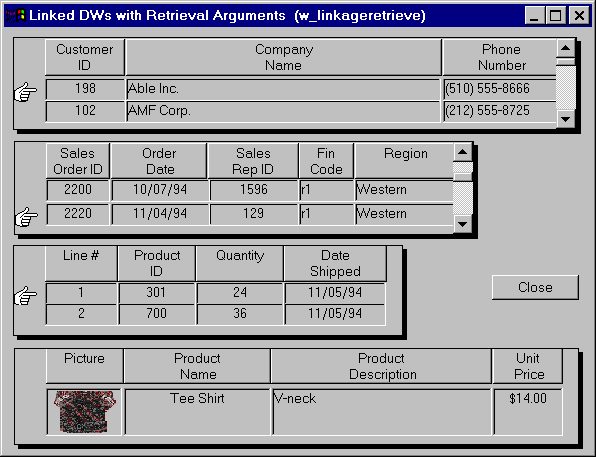
In the above example, the top DataWindow which displays the high-level summary information is called the master DataWindow. All other DataWindows are subordinates to the top one. The third one is subordinate to the second one and so on. In situations like this, typically, we write to the clicked/double-clicked event of the DataWindow and retrieve data from the subordinate DataWindows. PFC also does the same thing, however, it gives you a lot of choices in the functionality with minimal code.
If you want to use the PFC linkage service, first thing you need to do is turn on the linkage service for all the DataWindows that is in the link chain using the following syntax:
DataWindowControlName.of_SetLinkage( TRUE )
The next step is, you need to link each subordinate to the its next immediate master. In the above example, you need to link the second one with first, third with second and fourth:
dw_SalesOrder.inv_Linkage.of_LinkTo(
dw_cust )
dw_LineItems.inv_Linkage.of_LinkTo(
dw_SalesOrder )
dw_Pictures.inv_Linkage.of_LinkTo( dw_LineItems )
The next step is, you need to define the relationship between these DataWindows. For example, cust_id is the relationship between first and second, sales_order_no is between the second and the third and so on.
dw_Cust.inv_Linkage.of_SetArguments( "cust_id", "cust_id" )
In the above code, the first argument is the key in the master DataWindow and the second one is the key in the subordinate DataWindow. The final step is, set the style. You can set the style using the inv_Linkage.of_SetUseColLinks() function. There are three different styles available.
In the first style, the data in the subordinate DataWindow is retrieved depending on the retrieval arguments. For example, when you select a customer, PFC automatically retrieves the data from the immediate subordinate, just for that customer only. The advantage of this method is, less memory is needed because, only the required data in the subordinate DataWindow is required.
In the second style, PFC retrieves the data from all the DataWindows, including all subordinate DataWindows. As soon as you select a record in the master DataWindow, PFC automatically scrolls the appropriate record in the subordinate DataWindow and makes it the first record in the DataWindow display. If you have small amount of data, this method is good, because, PFC doesn’t have to retrieve every time, it has to just scroll to the right row.
In the third style, PFC retrieves the data similar to the second style. In this method, instead of scrolling to the correct row in the subordinate DataWindow, depending on the selected record in the master DataWindow, PFC filters the data in the subordinate DataWindow and displays only that data.
| Parameter | Description |
|---|---|
| 1 | Use Filter method |
| 2 | Use Retrieval method |
| 3 | Use Scroll to Row method |
When you to update all the linked DataWindows, just call the "pfc_Save" event for the master DataWindow. Sometimes, you may want to update the bottom most subordinate DataWindow first and update the immediate master and so on (Bottom to Top approach). Call of_SetUpdateBottomUp( TRUE ) function. Call the same function with FALSE as the parameter to update DataWindows from top to bottom. The second one is the default behavior.
At any time if you want to unlink the DataWindow, call the of_UnLink() function.
One final point, calling the following function sets the transaction object to all the DataWindows that are in the chain.
MasterDataWindowName.inv_Linkage.of_SetTransObject(SQLCA)