PFC’s sort service provides a lot of functionality and you can configure this service in any PowerBuilder’s application. To use the DataWindow services, use the u_dw user object instead of a standard DataWindow control. u_dw has a function of_SetSort() which takes a boolean parameter. Calling the function with a true parameter turn on the sort service and creates the sort service. The sort service object "n_cst_dwsrv_sort" is declared as an instance variable at u_dw.
To enable the sort functionality, simply you need to turn on the sort functionality by calling the of_SetSort() function.
dw_product.of_SetSort( TRUE )
If you run the application, you will see the standard sort criteria dialog box as shown in the following picture.
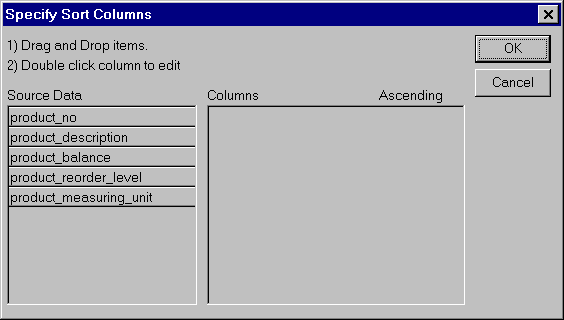
PowerBuilder's
default Sort Dialog Box.
With this default behavior, you can’t take the real advantage of sort service. You can ask PFC to display it’s dialog box instead of the standard sort criteria dialog box.
dw_product.inv_sort.of_SetStyle(1)
The above code turns on the Drag & Drop style dialog box instead of the standard PowerBuilder sort criteria dialog box.
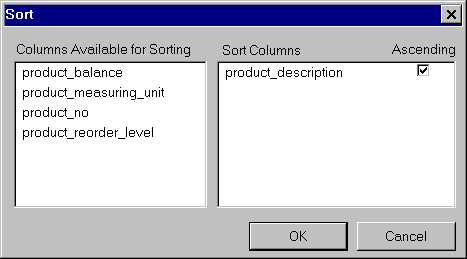
PFC's
Drag & Drop Style Sort Dialog Box.
In any situation, if you want to allow the user to sort only on one column, call the function with 2 as the parameter.
dw_product.inv_sort.of_SetStyle(2)
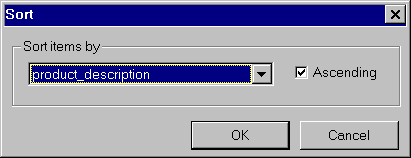
PFC's
Simple Single Column Dialog Box.
The following picture shows the DDLB style sort dialog box similar to the above, but allows multiple column sorting.
dw_product.inv_sort.of_SetStyle(3)
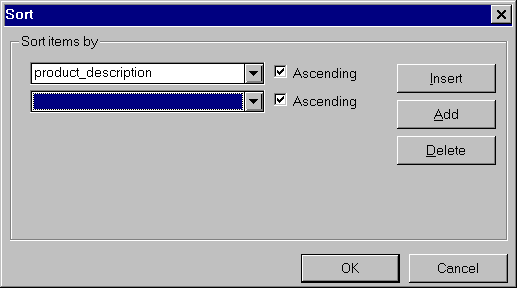
PFC's DDLB Style Sort Dialog Box.
If you observe the code, you will find that, we are calling of_SetSort() function that’s defined at the u_dw user object. However, we are calling the of_SetStyle() function from the service (declared as an instance variable). Once you decide the sort dialog box style, you can use other functionality.
Some DataWindows like the one we used in the w_transactions window, have some columns hidden. When you call standard dw_tran_header.Sort() function, PowerBuilder displays all the columns in the sort dialog box, irrespective of it is visible property status. When you use any of the PFC sort criteria dialog box, you can choose not to display hidden columns as shown below:
dw_product.inv_sort.of_SetVisibleOnly( TRUE )
Before we jump on to other topic, you need to understand some DataWindow background. You might have observed while coding, but, we want to make sure that you know.
Let’s start with a simple example. Say, you have painted a DataWindow, with one column "product_description" from product_master. When you refer to this column in the Modify() function, either you refer using the column number of column name. When you refer to the column, you refer it as "product_description". This "product_description" is called "DataWindow column name". When you are in the DataWindow painter, if you see the properties of this column, you will find the name as "product_description". You can change this name any name you wish as long as you follow the naming conventions.
If you select Rows/Column Specifications from the menu, you will see one more property, "database name" and you will see ‘Product_master.Product_description" under the "database name" heading. When PowerBuilder sends SQL statements, it uses this name. This is called "database column name". You can’t change this in PowerBuilder.
For each column you place in the DataWindow, PowerBuilder creates a label/header depending on the presentation style. By default the name of the label/header would be the DataWindow column name with "_t" as suffix. So, for "product_description" the label/header name would be "product_description_t". You can change this, if you wish. The text value of this label/header would be the column name with underscores replaced by spaces, "product description". This is called "column header name".
PowerBuilder by default displays the "DataWindow column names" in the sort criteria dialog box. You have no option of using a different one. However, you have a choice of using any of the above three when you PFC sort dialog box:
dw_product.inv_sort.of_SetColumnNameSource(3)
In the above code we are asking PowerBuilder to display column headers instead of DataWindow column names.
| Parameter | Meaning |
| 0 | Use standard Datawindow column names (default) |
| 1 | Use dataBase column names |
| 2 | Use column header names |
When you use 2 as parameter, PFC assumes the "column header names" are using default suffix "_t". If doesn’t find any name with this convention for any column, it will use the "DataWindow column name". If you are using a different suffix other than "_t", let PFC know about it by calling the of_SetDefaultHeaderSuffix() function.
dw_product.inv_sort.of_SetDefaultHeaderSuffix(
&
"Your Suffix Here")
Some times you don’t want the user sorting on particular columns. You can prevent him by calling of_SetExclude() function.
// Declare an INSTANCE variable by selecting Declare/Instance
//
Variables, at the window as shown below.
String is_ExcludeColumns[]
//
Write the following code.
is_ExcludeColumns[1] =
"product_description"
dw_product.inv_sort.of_SetExclude(
is_ExcludeColumns[] )
In the above example, we are excluding the "product_description" from the sort dialog box.