Debug service is really useful in the development environment. Even though there is a default debugging facility, sometimes, you may want to do fast debugging instead of going step by step in the debug painter. For example, you may want to display a message box when an event router fails delivering the message, but you don’t want to display in the production environment. In that case, you can turn on the debugging service as shown below:
gnv_app.of_SetDebug(TRUE)
The above code creates the debug service. This code will also display a message box when the a message is not processed (basically the message sent using the menu message router). There are two basic debug services are available. One is DataWindow specific and the other one is SQL specific. For example, you want to see all the SQL statements that are being generated by PowerBuilder to send to the database, then, you need to write the following code:
gnv_App.inv_debug.of_SetSQLSpy( TRUE )
The above code turns on the SQL spy service. Now, you have two options, either log all the SQL statements to a log file or display the SQL statements in a popup window. If you would like to log the SQL, you need to call of_SetLogFile() function with the file name as the parameter.
gnv_appthis.inv_debug.inv_sqlspy.of_SetLogFile( "SQLSpy.log" )
To display the SQLSpy popup window, call of_OpenSQLSpy(TRUE) function:
gnv_app.inv_debug.inv_sqlspy.of_OpenSQLSpy( TRUE )
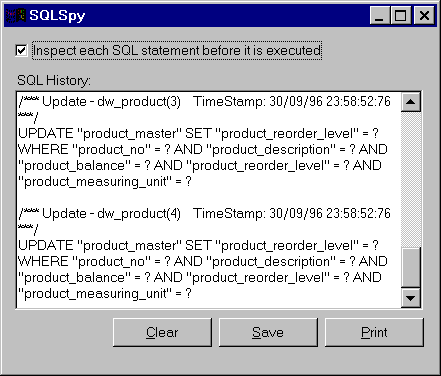
PFC SQL Spy Window.
The first check box in the above picture won’t be displayed with the above code. By default, the SQL spy utility works in the batch mode, that means, all the SQL statements are displayed/logged. It doesn’t allow you to change them before they actually get executed. In any situation if you would like to inspect the actual SQL statement before it is actually executed, you need to turn of the batch mode and turn on the inspect mode:
gnv_app.inv_debug.inv_sqlspy.of_SetBatchMode( FALSE )
gnv_app.inv_debug.inv_sqlspy.of_SetAllowInspect( TRUE )
Call those two scripts before you open the SQLSpy window. Now, if you run the application, you will still see all those SQL statements. Say, you open the w_product_master window and retrieve the data from the database. You will see the SELECT statement in the SQLSpy window. You must be wondering why the utility didn’t prompt you for changing the SQL. This utility doesn’t allow you changing the SQL while it retrieves the data. However, you can change the SQL before you update/delete/insert. For ex, if you change the description of one of the product and save the changes, PFC will prompt you as shown below:
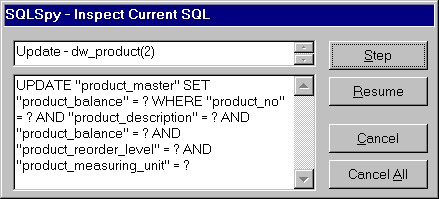
PFC SQL Spy Inspect Window.
In this window, you can do changes to the SQL statements. Similar to the debug painter, you can execute one SQL statement at a time by using the "Step" button, OR you can ask the SQL Spy to execute all the SQL statements after the current one without prompting you. You can use SQLSpy for DataWindows and embedded/dynamic SQL also.
Sometimes, you need to debug the DataWindow, i.e., finding out the row/item status, font/color/any other expressions and so on. In that case, SQLSpy is not useful, since it deals with SQL only. For this purpose, you need to use w_dwDebugger window. We couldn’t find w_dwDebugger window in any of the PFE libraries (might be a mistake done at Powersoft). Create a window by inheriting from "pfc_w_dwDebugger" window and save it as "w_dwDebugger". You don’t have to change anything. Whenever you want to debug the DataWindow, then write the following code. For example, say, you found some funny things are going on when the user clicks with the right mouse button and you want to debug at that moment. Then write the following code to the rButtonDown event:
s_dwdebugger
lstr_parm
lstr_parm.DW_obj =
dw_product
lstr_parm.Tr_obj = SQLCA
OpenWithParm(w_dwdebugger, lstr_parm)
You will see the following window:
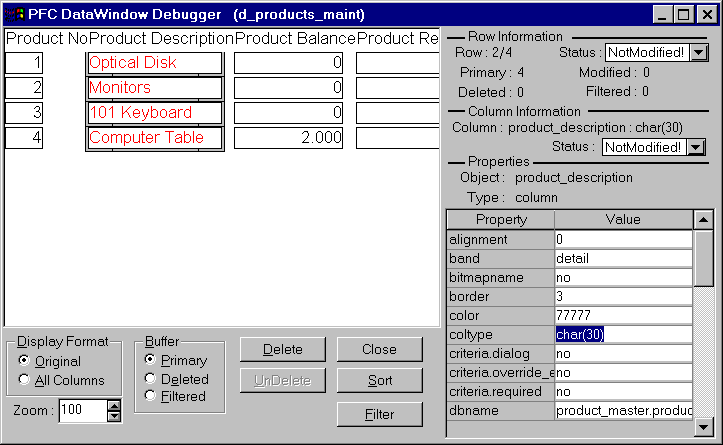
PFC debug window for a DataWindow.
In this window, you can see the values of all the attributes of the selected row/column. You can also see rows from the deleted/filtered buffers. If you change the value of any attribute in this window, PFC automatically applies to the actual DataWindow, as soon as you tab out of the changed field. In the above picture, we changed the border and as soon as we press tab, PFC changed the border of that field. Cool, we didn’t write the modify() function, PFC took care of it internally.