PFC has six menus. Four out of five menus are meant for window objects. For example, pfc_m_dw is designed as a right mouse button menu for a DataWindow control. You need to create your window menus by inheriting from m_master menu.
| Menu Name | Purpose |
| m_edit | Used as right mouse button menu for any editable control such as SingleLineEdit, MultilineEdit, etc.. |
| m_dw | Used as right mouse button menu for the DataWindow control. |
| m_oc | Used as right mouse button menu for a OLE control |
| m_view | General purpose right mouse button menu, for arranging sheets. |
| m_master | This is the window menu from which all of your application’s menus will get inherited. |
| m_frame | Inherited from m_master. Useful for mdi frame window. |
Create a new menu by inheriting from m_frame (PFEWnSrv.Pbl). You can see a lot of extra options compared to our "m_mdi_menu" menu. Don’t worry, most of the menu option’s visible value is set to false.
Append Module to the menu bar, i.e., it will appear after Help menu bar item at design time. At run-time, Module option will appear before &Help, because, &Window and &Help menu bar items have Shift Over/Down property turned on. Add &Products, &Transactions, &Units as menu items for the &Module menu bar item.
Before we write script to these new menu items, we need to understand the PFC way of communication between menu and other window/window controls. Let’s first examine the communication method that is in practice in all most all PowerBuilder programs.
Typically, the menu items clicked event triggers a event in the active sheet. For example, to retrieve data from a DataWindow in the active sheet, we trigger "ue_retrieve" event that is declared at the window level.
Window lw_Sheet
lw_Sheet = GetActiveSheet()
If IsValid( lw_Sheet ) Then
   TriggerEvent( lw_Sheet, "ue_retrieve")
End If
Coming to PFC, PFC has a function of_SendMessage() declared at the menu object. In any menu item’s script, what we need to do is, just call of_SendMessage() function with the event name to trigger as a parameter. That’s all. This function works as follows:
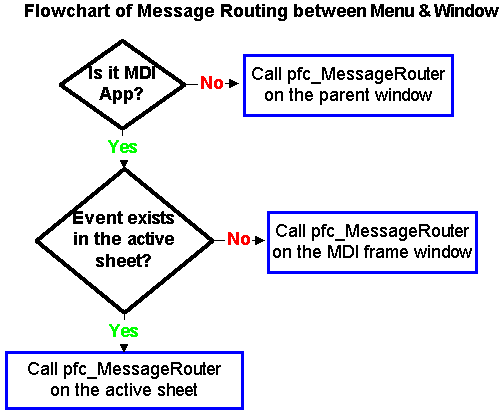
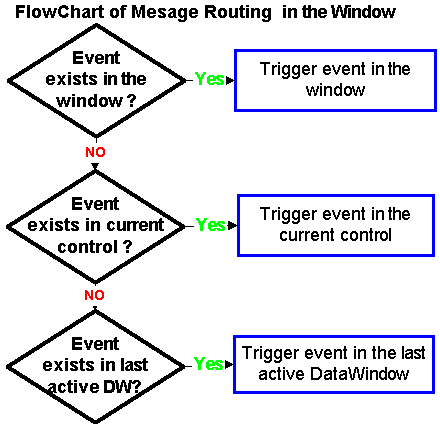
pfc_MessageRouter event is declared in all PFC windows. To open a new sheet, say, product master, we can following one of the following methods: In the first method, declare an event for each menu item under the Module option and trigger appropriate event using of_SendMessage() function. For example, declare the following three events at the w_mdi_frame window:
 |
open_products (Trigger this event from Module/Products option, of_SendMessage( "ue_open_products" )) |
|
open_trans (Trigger this event from Module/Transs option, of_SendMessage( "ue_open_trans" )) |
|
open_units (Trigger this event from Module/Units option, of_SendMessage( "ue_open_units" )) |
In the other method, just declare only one user-defined event at the w_mdi_frame window, "ue_open_sheet". Trigger this event as you did in the first method, i.e., by calling of_SendMessage( "ue_open_sheet" ). Before, this line of code, populate the message object with the window name to open. For example, the code for the Module/Products menu option would be:
Message.StringParm = "w_product_master"
of_SendMessage( "ue_open_sheet" )
In the ue_open_sheet event, use the OpenSheet() function as shown below:
String ls_WindowName
Window lw_Sheet
ls_WindowName = Message.StringParm
OpenSheet( lw_Sheet, ls_WindowName, This, 0, Cascaded! )
The second method is more easy and needs less maintenance when you add more options to the menu. Save the menu as "m_mdi_frame" in the "pfc_product" library. Now, open the w_mdi_frame window and change the menu name of this window to "m_mdi_frame" in the window properties dialog box.
Similarly, create another menu "m_sheet_menu" by inheriting from "m_master". Save this menu in the "pfc_product" library. Add all the options that you have added in the "m_mdi_frame" menu. You need to add few more menu items to this menu as explained below.
Append Print Preview Zoom, -, Query, Retrieve menu items to the File menu bar item in the same order. Turn off the visible property for the "-" menu option that is located below the Print Immediate option. Hide Paste Special that is located under the Edit menu bar item. Send ue_Query from the File/Query menu item’s clicked event script using of_SendMessage() function. Similarly send ue_Retrieve message from File/Retrieve menu item. Send pfc_zoom message from File/Print Preview Zoom menu item.
Now, let us start looking at each service one at a time. Even though we explain all the services, we don’t need all those services in the "Product Management System". For example, we don’t need DataWindow’s linkage service. To start with, use only those services that you need in this application (Don’t change "Product Management System" functionality too much). Once you see the application is running using PFC services, and complete the exercise, you can implement any extra services.