| Home | Previous Lesson: Advanced Scripting, DataWindows - II Next Lesson: An Object to export a DataWindow |
We are sure that you know how to sort the data in the DataWindow. You just need to call Sort() function. Then, why we are developing this utility? When we call Sort() function, PowerBuilder displays all the columns in the DataWindow in the sort criteria dialog box. As you know, the database names and the headings in the DataWindow may not be exactly same. In the column names there are a lot of restrictions, and, typically, the names would be cryptic for the end user. What we are going to do in this utility is that, let the user click on the DataWindow column interactively and let's take care of sorting the data.
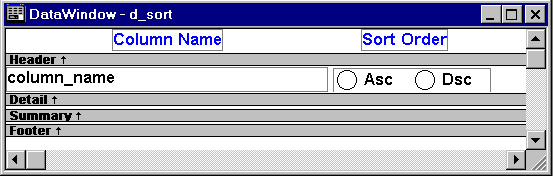
Paint a tabular style DataWindow with an external data source. Define the result set for the DataWindow as follows:
| Name | Type | Length | Decimals |
| column_name | string | 40 | 0 |
| sort_order | string | 1 | 0 |
Change the edit style for the sort_order column as RadioButton. The allowed values for the sort_order column should be "A" (Asc), "D" (Dsc) and save the DataWindow as "d_sort".
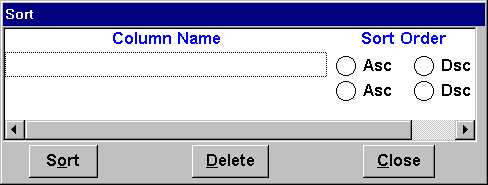
Paint a window as shown in the following picture. There are four controls in the window. A DataWindow "dw_sort", the three other controls are CommandButtons. Those are "cb_sort", "cb_delete" and "cb_close" from left to right. Save this window as w_sort. Make sure to set the window type as "Child" window. Disable all window options expect visible, boarder and title. Set the title to "Sort". Associate "d_sort" DataWindow to the "dw_sort" DataWindow control.
Declare two instance variables: iWindow as a Window, and iDw as a DataWindow:
Window iWindow
DataWindow iDw
The purpose of iDw is to store the DataWindow that the user wants to sort on, while iWindow stores the window. Actually, storing the window isn't necessary, but if we do, it allows the sort window to be more flexible. For example, suppose that two sheets are open and the user invoked the sort window from Sheet2. As you know, we are allowing the user to select the column by clicking on the appropriate sheet, so if the user clicks on a column from Sheet1, we won't be able to find the column name. Sending both the Window and the DataWindow overcomes this problem.
We need to declare a function wf_initialize() at this window level. The purpose of this window is to initialize the instance variables. We can't hard code the DataWindow name to sort, since we are creating a general purpose utility. After opening this window, let the user of this utility call this function saying which DataWindow to sort and in which window the DataWindow is in.
// Object: w_sort
// Function: wf_initialize
// Access Level: public
// Returns: (none)
// Arguments: p_window window By value
// p_dw datawindow By value
String lSortOrderStr, lSortOrderStr1, lColName, lSortOrder
Int lEndPos = 0, lSpacePos
Long lNewRow

If ( NOT IsValid( p_window )) OR &
	( NOT IsValid( p_dw )) THEN
	Close( This )
End If

iWindow = p_window
idw = p_dw

lSortOrderStr = idw.Describe( "datawindow.Table.Sort" )

If lSortOrderStr <> "!" and lSortOrderStr <> "?" Then
   dw_sort.Reset()
   Do While Len(Trim(lSortOrderStr)) <> 0
      lEndPos = Pos(lSortOrderStr, ",")
      If lEndPos = 0 Then
	lEndPos = len(lSortOrderStr)
	End If
      lSortOrderStr1 = Left( lSortOrderStr, lEndPos -1 )
      lSortOrderStr = trim(Mid ( lSortOrderStr, lEndPos+1 ))
      lSpacePos = Pos(lSortOrderStr1, " ")
      lColName = Left(lSortOrderStr1, lSpacePos)
      lSortOrder = Trim(Mid(lSortOrderStr1, lSpacePos))
      lNewRow = dw_sort.InsertRow(0)
      dw_sort.SetItem( lNewRow,1, lColName )
      dw_sort.SetItem( lNewRow,2, lSortOrder )
   Loop
End If

If dw_sort.RowCount() = 0 Then
   cb_sort.enabled = False
   cb_delete.enabled = False
Else
   cb_sort.enabled = TRUE
   cb_delete.enabled = TRUE
End If

Return
This function assigns the Window and DataWindow to instance variables and determines the existing sort order by calling Describe(). If there is any problem, Describe() will return either '!' or '?'. The following loop parses the sort order string returned by Describe() and inserts each column name and sort order in the dw_sort DataWindow.
Okay, in the above function, we know which DataWindow to sort. But, we don't know the sort criteria. We need know each column the user clicks and add it to the sort criteria. We need one more function wf_add_to_sort_cols. Declare the following function at the window level.
// Object: w_sort
// Event: wf_add_to_sort_cols
// Access: Public
// Returns: (none)
// Arguments: p_window	window	By value
// p_dw	datawindow	By value
// p_clicked_col_name	string	value

String lArg1, lClickedColName
Long lNewRow

If IsValid( p_dw ) Then
   If p_dw <> idw Then
      idw = p_dw
      dw_sort.Reset()
   End If
Else
   Return
End If

If IsValid( p_Window ) Then
   If p_Window <> iWindow Then
	iWindow = p_Window
   End If
Else
   Return
End If

lNewRow = dw_sort.InsertRow(0)
dw_sort.SetItem( lNewRow, "column_name", p_clicked_col_name )
dw_sort.SetItem( lNewRow, "sort_order", "A" )
//idw.AcceptText()
cb_sort.enabled = TRUE
cb_delete.enabled = TRUE

Return
This function checks that the DataWindow and Window are valid and then adds the column name to the dw_sort DataWindow control and enable the Sort and Delete buttons.
The final thing to do is to apply the sort criteria when the user clicks on the Sort button. Write the following code for the clicked event of the cb_Sort button:
// Object: cb_sort
// Event: Clicked

Long lTotRows, i
String lSortStr

dw_sort.AcceptText()

lTotRows = dw_sort.RowCount()
If lTotRows > 0 Then
   lSortStr = dw_sort.GetItemString(1,1) + " " + &
         	dw_sort.GetItemString(1,2)
End If

If lTotRows > 1 Then
   For i = 2 to lTotRows Step 1
      lSortStr = lSortStr + ", " + dw_sort.GetItemString(i,1) + &
            " " + dw_sort.GetItemString(i,2)
   Next
End If

idw.SetSort( lSortStr )
SetPointer( HourGlass! )
idw.Sort()
SetPointer( Arrow! )
This sets the values from each row in the dw_sort DataWindow control and prepares the sort strings with a loop. Before we actually sort the DataWindow, we call SetSort() with the new sort criteria. We then change the pointer to an hourglass, and call the Sort() function, before changing the pointer back.
As a final touch, allow the user to delete a sort criteria by clicking on the Delete button:
// Object: cb_delete
// Event: Clicked

Long lCurrentRow
lCurrentRow = dw_sort.GetRow()
If lCurrentRow > 0 Then
	dw_sort.DeleteRow( lCurrentRow )
	If dw_sort.RowCount() = 0 Then
		This.enabled = FALSE
		cb_sort.enabled = FALSE
	End If
End If
Now, we are done with developing the utility. Let's use it. Open the "w_product_master" window and comment all the code in the "ue_sort" event for the widnow and type the following code:
Open( w_sort )
w_sort.wf_initialize( this, dw_product )
As explained above, we are opening the window and calling the initialize function with the window and DataWindow names.
Now we have to allow the user to select a column by clicking on it. The following code has to be written for the clicked event for the DataWindow control on w_product_master:
// Object: dw_product
// Event: Clicked

If Handle( w_sort ) > 0 AND &
	Upper(dwo.Type) = "COLUMN" Then
	w_sort.wf_add_to_sort_cols( Parent, This, dwo.Name)
	Return 0
End If

Return 0
This code checks whether or not the w_sort is open using the Handle() function. If the return value is greater than zero, the window is open and we call another function to add the column to the sort list.
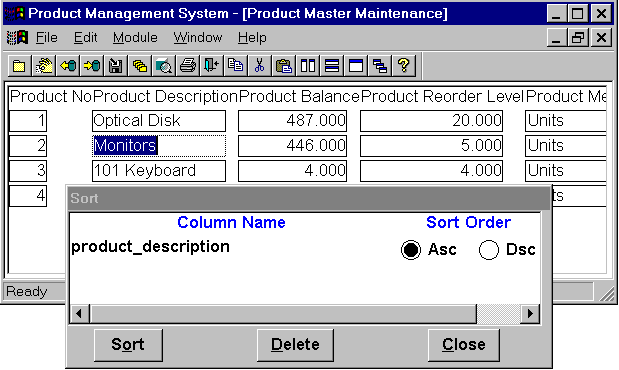
Want to see this in action? Run the application and test it. Working? Hey Guys, take it and use it in your real applications. You pay No royalities to us.
| Home | Previous Lesson: Advanced Scripting, DataWindows - II Next Lesson: An Object to export a DataWindow |