| Home | Previous Lesson: OLE Automation - PowerBuilder Implementation Next Lesson: Creating .REG File |
The registry is a system-defined database that applications and Windows system components use to store configuration data. In the past, Windows 3.1 applications stored their configuration data in WIN.INI or some other application-defined .INI file. The system stored its configuration information in SYSTEM.INI. This information was stored in ASCII files that a user could edit and view in any simple text editor, such as Notepad. In the system registry, the data is stored in binary files, so applications can no longer rely on text editors for updating the information contained in the registry. Instead, applications may either use the registry functions supplied by the system or create registration files (.REG) that contain information to be stored in the registry. These .REG files are ASCII files that can be created with any text editor. The Registry Editor (REGEDT32) can read in these files and store the information in the appropriate places in the registry.
You are probably wondering why the change from something so easy to use (ASCII .INI files) to something that sounds more complex (binary files). In the past, Windows-based applications used the GetProfileString() and SetProfileString() functions to store information in the WIN.INI file. However, as more and more applications were written for Windows, it became apparent that this method had some problems.
One big problem was the scope of the WIN.INI file. Remember, each application was storing information in this file, and there weren't any rules that stated what could be stored and where to store it. Thus the WIN.INI file became confusing because items were added to it in no particular order. When the file was opened, it was hard to find or change something. It was also difficult to determine exactly what needed to be changed and whether all of the changes had been made.
Because there weren't any rules as to what could be stored, WIN.INI could potentially become very large; however, there was an internal limitation of 64K for .INI files in Windows. So if the file became too large, you were just out of luck. This, we can all agree, is simply not an acceptable situation.
To get around these problems, it was recommended that applications begin storing their information in private .INI files rather than in WIN.INI. Okay, so this got around the potential confusion as to what application uses what and the size issue. But this didn't prove to be such a great solution either. Because applications used different files, they were unable to share configuration and other information easily. This was a big problem for applications that were using dynamic data exchange (DDE) or OLE, because these applications needed to share server names.
As a result, the registration database was created in Windows 3.1. This database is the basis of the Windows NT and Windows 95 registry.
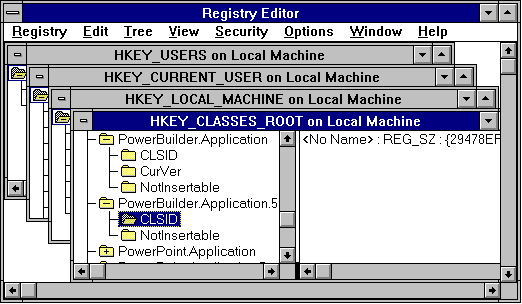
The registry stores data in a hierarchically structured tree. The tool that allows you to see this is called the Registry Editor. Each key can contain children known as subkeys and data entries called values.
Keys don't have to have values associated with them. Sometimes, all that the application needs to know is that the key exists; other times, an application may need many values to be associated with a specific key. A key can have any number of values, and the values can be in any form.
Keys have names just like a variable. Key names can consist of one or more printable ANSI characters (values ranging from 32 through 12) and cannot include spaces, backslashes, or wildcard characters (* and ?). This means that you can name both your dog and your key "Spot" if you so desire. Key names beginning with a period (.) are reserved. These names are not localized into other languages; however, values associated with the keys may or may not be localized. Subkeys also have names, and the name must be unique with respect to the key immediately above it in the hierarchy.
The registry supports several different data types for values. Your application can use any of these data types, depending upon what you want to store. Table 1 contains a list of the different data types supported.
Data type |
Description |
REG_BINARY |
Binary data in any form. |
REG_DWORD |
A 32-bit number. |
REG_DWORD_BIG_ENDIAN |
A 32-bit number in big-endian format. |
REG_DWORD_LITTLE_ENDIAN |
A 32-bit number in little-endian format. This is the most common format for computers running Windows NT. |
REG_EXPAND_SZ |
A null-terminated string that contains unexpanded references to environment variables (for example, %PATH%) |
REG_LINK |
A Unicode symbolic link. |
REG_MULTI_SZ |
An array of null-terminated strings, terminated by two null characters. |
REG_NONE |
No defined value type. |
REG_RESOURCE_LIST |
A device-driver resource list. |
REG_SZ |
A null-terminated string. |
Predefined keys are system-defined keys that help an application navigate in the registry. These keys also make it possible to develop tools that allow a system administrator to change whole categories of data. The following keys are defined at the root of the registry:
HKEY_CLASSES_ROOT : Entries within this key define types (or classes) of documents and the properties associated with those types. Data stored under this key is used by Windows shell applications and by OLE applications. This is where file viewers and shell extensions store their OLE CLSIDs, and where in-process servers are registered.
HKEY_CURRENT_USER : Current user preferences are stored within this key. These preferences include items such as the settings of environment variables, data about program groups, colors, printers, network connections, and application preferences. This key is included to make it easier to set the current user's settings; the key maps to the current user's branch in HKEY_USERS. Software vendors use this key to store the current user-specific preferences to be used within their applications.
HKEY_LOCAL_MACHINE : Entries within this key show the physical state of the computer, including data about the bus type, system memory, and installed hardware and software. This key contains subkeys that contain information about network logon preferences, network security information, software-related information (server names, location of the server, and so on).
HKEY_USER : This key stores information about the default user configuration and contains a branch for each user of the computer.
HKEY_CURRENT_CONFIG : This key is mapped to a subkey within HKEY_LOCAL_MACHINE. This is where non-user-specific configuration information that pertains to hardware is stored. For example, an application may store a different server name for its data depending on whether the system is attached to a network.
HKEY_DYN_DATE : This key is used to store dynamic registry data. The Windows 95 registry supports both static data (data stored on disk within the registry) and dynamic data (data that changes a lot, such as performance statistics). This dynamic data area is the mechanism provides real-time data to Win32 applications that can run remotely as well as locally. This also allows the system monitor to provide performance statistics on remote Windows 95 systems.
Coming back to GUID, GUIDs appear in various places, however, as a PowerBuilder application developer, we need to deal with .REG files only.
.REG files : When you create an application, you usually create one or more .REG files. The .REG files contain the GUIDs for the classes that your application exposes. These GUIDs are added to the registry when you run REGEDIT.EXE with /M option. More about this is covered in a minute.
The system registry : Contains the GUIDs for your classes in multiple places. This is where OLE and applications get information about your classes.
.ODL files : When you describe objects in an Object Description Language (.ODL) file, you provide a GUID for each object. Compiling the .ODL file with MKTYPLIB.EXE places the GUIDs in a type library, which usually exists as a .TLB file.
.TLB files : Type libraries describe your classes, and this information includes the GUIDs for the classes. You can browse .TLB files using the TIBROWSE sample application supplied with OLE.
.H files : Most application developers will declare CLSIDs for their classes in a header file using the DEFINE_GUID macro.
| Home | Previous Lesson: OLE Automation - PowerBuilder Implementation Next Lesson: Creating .REG File |