| Home | Previous Lesson: OLE Objects Next Lesson: In-Process Versus Out-Process |
In the case of DDE, the server application (Word) is visible to the user. The same is true when you place an OLE 2.0 control in a window and invoke the server application. However, you don't need to place an OLE control on a window to manipulate an OLE object in your script. If you think that user interaction isn't necessary, you can create an OLE object independent of an OLE control, connect to the server application, calling functions and setting attributes as you wish for that object.
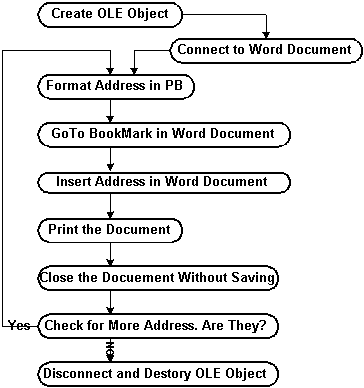
The following example uses an external data source DataWindow that contains addresses and another Word document to act as the form letter. The following figure illustrates the process involved:
If you open up "c:\workdir\ole_letter.doc", you'll see that it contains some text and a blank heading ready for the address.
We've defined a bookmark called "Address" after the word "To" and we will use this to specify where the address should go.
This example is the w_mail_merge_using_ole window in the OLE2-2.PBL library. If you open up the window, you'll see that it contains a DataWindow control containing the address information and just two CommandButtons.
The code for the clicked event of the Mail Merge button is as follows:
Any lResult // Declare and create ole
object. lResult = OLEMailMerge.ConnectToNewObject( "word.basic" ) If Integer(lResult)
<> 0 Then lTotRows = dw_1.Rowcount()
// These are the important commands:
Next lResult =
OLEMailMerge.DisConnectObject() |
When you run this example, it might take long time depending on the your computer and whether MS-Word is already open or not. In this example, we are introducting a new data type "ANY". This variable is used especially, when you don't know the return value of the OLE Server method. Later when you compare with any value, we need to explicitly convert the value as shown in the example. We define OLEMailMerge as an OLE object, connect to the Word document and then send the various server commands. The important lines are:
Code |
Description |
OLEMailMerge.editgo( "Address" ): |
This sends the command to go to the bookmark. |
OLEMailMerge.insert( lAddress ): |
This inserts the address. |
OLEMailMerge.FilePrint(): |
This prints the document. |
OLEMailMerge.FileClose( 2 ): |
This closes the document without saving it. |
We are closing the document without saving it, so that when we loop around for the next address, we can reopen the document as a clean copy.
 |
Any attribute, function or parameter used against this object are referred to the server. So PowerBuilder doesn't need to know whether they are valid or not and will not check them. If the functions or attributes are invalid, you will get an error at run-time. |
When you run this window and click on the Mail Merge button, you won't see much happening, but assuming your computer is connected to a printer, you should get two printed copies of our form letter, one for each of the addresses in our DataWindow.
| Home | Previous Lesson: OLE Objects Next Lesson: In-Process Versus Out-Process |
 DESTROY
OLEMailMerge
DESTROY
OLEMailMerge lAddress
= lAddress + "~r~n" + &
lAddress
= lAddress + "~r~n" + &