| Home | Previous Lesson: Multiple Database Support Next Lesson: Adding a Row to the DataWindow |
Okay, we laid the foundation, i.e., assigned the DataWindow object to the DataWindow control, connected to the database and set the transaction object to the DataWindow control. Now, what we need to do is, call a function to retrieve the data from the database and populate the DataWindow and display it in the format painted in the DataWindow painter.
// Object: cb_retrieve in w_product_master
// Event: Clicked
dw_product.Retrieve()
This Retrieve() function is defined at a DataWindow control. In other words, we are calling an object function. To call an object function, you need to give an object name, followed by the function name, separated by a period. That means, DataWindow control name, a period and the function name.
All the information defined in the DataWindow will be retrieved and displayed in the DataWindow control. Sometimes, DataWindows have SELECT statements with arguments. In those cases, you can send the arguments within parentheses.
If you supply values exceeding the defined arguments in the SELECT statement, PowerBuilder does not generate error. Instead it ignores the extra arguments. PowerBuilder added this functionality only from version 5.0 onwards. In previous versions, it generates an error. Since beginning of the course, you were doing various exercises, but didn't see the fruits of your labor. You will be seeing it now. Run the application and click on the Retrieve button and you will be seeing the data in the DataWindow control. Happy!
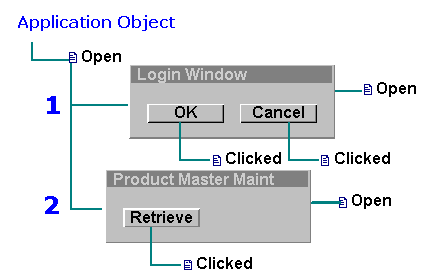
Take time to review the programming you did till now using PowerScript. Especially, if you didn't have event driven programming experience, because, it is very easy to get lost in writing scripts, at so many places. The following is a chart of the programming you have done so far.
| Home | Previous Lesson: Multiple Database Support Next Lesson: Adding a Row to the DataWindow |