| Home | Previous Lesson: Events and Return Values Next Lesson: Triggering Events Dynamically |
Events that are mapped to regular event ids are triggered automatically. For example, clicking on a CommandButton automatically executes the script written for its Clicked event (pbm_bnclicked event id for the CommandButton). Sometimes, you may want to trigger the event programmatically. For example, you may want to trigger the 'Sort' event in the DataWindow control, if the user selects the 'ue_sort' option from the popup menu of a DataWindow. To trigger an event, you need to use the TriggerEvent(), and the syntax is:
ObjectName.TriggerEvent(Event, { WordParm }, { LongParm })
WordParm and LongParm arguments are optional. All pre-defined events are defined as enumerated data types under trigevent. For example, for Close event, there's an enumerated data type Close!, for "activate" event, it's activate! and so on. To trigger pre-defined events, you need to use enumerated data types. The following examples trigger Close and Activate events for the w_script_practice window.
Int li_retstat
li_retstat = w_script_practice.TriggerEvent(Close!)
If li_retstat <> 1 Then
   //Error handling ...
End If
li_retstat = w_script_practice.TriggerEvent(Activate!)
If li_retstat <> 1 Then
   //Error handling ...
End If
While triggering a user-defined event, use the event name within quotations. The following example triggers "ue_save" event in w_script_practice window.
Int li_retstat
w_script_practice.TriggerEvent("ue_save")
If li_retstat <> 1 Then
   //Error handling ...
End If
If the specified event's script executes successfully, TriggerEvent() returns 1. If no script exists or the specified event is invalid (may be you forgot defining that event or misspelled the event name), -1 will be returned. We always recommend checking of return values.
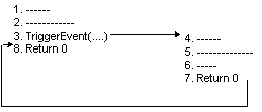
TriggerEvent() function executes synchronously, i.e., the next command after this command will not be executed until this command is executed completely.
As shown in the above syntax, you can also send parameters to the event in the TriggerEvent(). When you send parameters, they are stored in the Message object. Message Object is explained in detail in the "Inter Object Communication" section. For the time being just note that, Message object is a global object and is available by default in all PowerBuilder applications. In simple terms, the main purpose of this object is to store information that is accessed from other objects. Parameters passed to the event in the TriggerEvent() are available in Message.StringParm and Message.LongParm members.
There are limitations in the number of parameters you can pass for an event through this function; only two arguments are allowed. Another disadvantage with this function is that, the return value of the event can't be trapped. The return value of this function is the success/failure of the function call itself, and not the return code returned in the event script.
With version 5.0, another syntax is available for executing events and functions. Powersoft says that the new syntax is only an enhancement, and not a replacement for the old syntax, but I am afraid it is not so. Once you start using the new syntax, there are chances that you will not go back to the old syntax again. The much talked about syntax is as follows:
{ObjectName.}{Type} {CallType} {When} &
      Function/Event Name ({ ArgumentList})
The same syntax allows you to execute either an event or a function, just specify keyword Function or Event in place of Type. If you do not specify anything, Function will be taken by default. CallType indicates whether it is a static or a dynamic event, which we will explain in a moment. When indicates whether you want to trigger or post the event/function. Similar to calling a function, you always need to specify parenthesis after the event or function name irrespective of the parameters. The following script triggers "ue_save" event at the window.
/* Either lines trigger ' ue_save'
   event at the window. */
Parent.Event Trigger ue_save()
Parent.Event ue_save()
The return value for the TriggerEvent() is always an integer. However, the return value for this new syntax depends on the return value type declared at the called event/function. If the event is returning a string value, you need to assign the return value to a string variable. Even though it is good practice to check the return value, assigning return values is not mandatory.
String ls_status
ls_status = Parent.EVENT STATIC TRIGGER ue_SendToMainFrame()
ls_status = Parent.EVENT TRIGGER ue_SendToMainFrame()
Parent.EVENT STATIC TRIGGER ue_SendToMainFrame()
Parent.EVENT TRIGGER ue_SendToMainFrame()
All the above statements are correct. The only limitation on return value being, that the return value expression shouldn't return an array. CallType is static by default. That means, compiler checks the presence of the calling event or function and its return value type at the compilation time. If the event or function doesn't exist, or the assigned returned value type is incorrect, error will be generated.
Calling ancestor events is explained in "Inheriting a Window" section.
| Home | Previous Lesson: Events and Return Values Next Lesson: Triggering Events Dynamically |