| Home | Previous Lesson: Events and Messages Next Lesson: Events and Return Values |
With version 5.0, you can parameterize events. For example, prior to version 5.0, to access the SQL statement that is being send to the database you need to call GetSQLPreview() function in the SQLPreview event. From version 5.0 onwards, you no longer need to call that function (which became obsolete), instead you can use SQLSyntax parameter of SQLPreview event. In addition to that, PowerBuilder also sends few other parameters including the row number for the SQL statement, the SQL statements being SELECT, UPDATE, DELETE, INSERT. Which means that in the clicked event, you don't need to call GetClickedRow() function, instead you can use the row parameter for the clicked event. Event parameterization makes programming flexible with less function calls.
Before jumping onto the advanced stuff, I would like you to do the following. Open the w_product_master window and go to the script editor for dw_product DataWindow and go to the SQLPreview event. Invoke popup menu in the script view and select 'Edit > Paste Special > Arguments' menu option, you will find all the parameters to the SQLPreview event (as explained before) in a popup ListBox. Invoke the PowerBuilder online help and select Contents tab. Click on 'Objects and Controls' help topic and double-click on 'DataWindow Control'. Go to the Events option and read the help for SQLPreview event.
You can neither change nor add parameters for the system-defined events. By system defined events I mean PowerBuilder defined events including VBX events, pb_customXX events. All custom events, such as pb_customXX events have two pre-defined parameters, i.e., wparam and lparam. All VBX events are defined with no parameters.
PowerBuilder allows you to define an event without mapping it to any event id. These are the only events for which you can define parameters. If you don't map event ids, how does PowerBuilder execute the events? Well, for those events at run-time, PowerBuilder generates an internal id number dynamically and puts them in the message queue.
You can pass arguments to an event in three different ways:
Pass by Value: When an argument is passed by value, PowerBuilder makes a copy of the argument and sends that copy to the event. Changes to the argument in the called event script will not be reflected in the calling script, since, the called event is only changing the copy. As soon as the called event completes the execution, copy of the argument is no longer in the memory.
/* Script for the clicked event for the CommandButton */
int li_counter
li_counter = 100
MessageBox("li_counter value before event " + &
      " execution",li_counter)
Parent.Event ue_test(li_counter)
MessageBox("li_counter value after event " + &
      " execution", li_counter)
/* Script for the ue_test event for the w_practice window
Arguments: pArgument1 Int By value
*/
MessageBox("Value before changing in the event",pArgument1)
pArgument1 = 200
MessageBox("Value after change in the event", pArgument1)
Return 0
In the above example, after executing the event, li_counter value is still 100 even though 200 is assigned to it in the called event script 'ue_test'. I will explain different ways of executing the event script in the next topic.
Pass by Reference: When an argument is passed by reference, PowerBuilder passes a pointer to the argument. That means any changes to the argument in the called event script will reflect in the calling script. To see it, change the argument definition in the above example from 'Pass by value' to 'Pass by reference' and run the window again. PowerBuilder will display 200 after executing 'ue_test' event. If you just want to refer to the argument in an event, send by reference. This will be more efficient, since, only pointer is passed instead of making a separate copy of the argument.
Pass as Read-Only: The third way of passing an argument is 'read-only'. As the name suggests, the argument is read-only, you can't change the value of the argument in the called event. Do you think so? Well, the answer is both yes and no. Yes, in case of traditional datatypes such as integer, string etc. For object datatypes, the name 'read-only' is misleading. What they mean by "read-only" is that you can change the value of the argument, but you can't re-assign another object to this object. Here you can change the object's attributes. (You are not limited to sending conventional data types as arguments, you can also pass PowerBuilder objects as parameters to the events.)
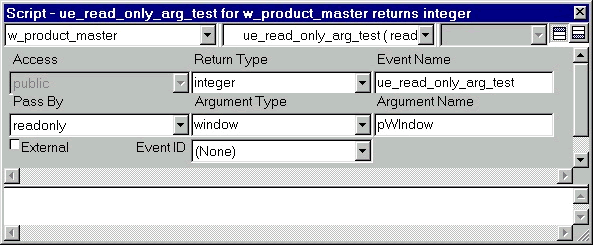
For testing purposes, declare a user-defined event ue_read_only_arg_test for the window w_practice. Don't map any event-id to the ue_read_only_arg_test event. Specify arguments as shown in the following picture. Specify Integer as the return value.
Type the following script in the ue_read_only_arg_test event.
/* Argument Name data type Pass By */
/* pWindow Window ReadOnly */
Int li_xValue
Window lWindow
lWindow = CREATE w_practice
/* This statement has no problem because we are just referring to the attribute */
li_xValue = pWindow.x
/* This statement also has no problems, because we are just changing one of its attribute */
pWindow.x = 100
/* This statement generates compilation error, since we are assigning another window to it, that means, we are telling PowerBuilder to point to another window */
pWindow = lWindow
Return 0
If you compile the above script, PowerBuilder compiler generates the following error:
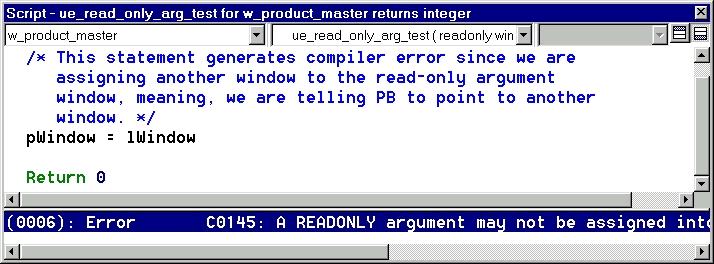
By assigning another window to pWindow, you are asking pWindow to map to lWindow, i.e., you are changing the pointer of pWindow, which is not allowed.
In short,
| Home | Previous Lesson: Events and Messages Next Lesson: Events and Return Values |