| Home | Previous Lesson: Saving User Defaults Next Lesson: CONSTANTS in PowerScript |
Until now you learned about storing user defaults and reading them from .INI files. .INI files were the only choice operating system provided till Windows 3.0. From Windows 3.11, they introduced Registry database; this database is managed by the operating system and allows the user to create/delete and modify entries in that database. The data in this database is stored in the hierarchical format, something like the DOS tree structure file system.
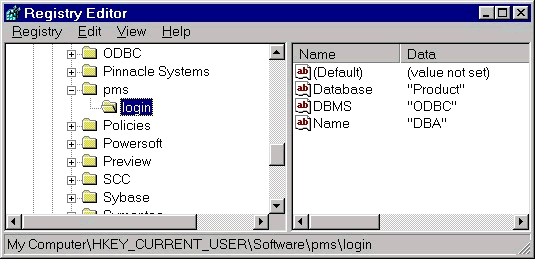
In the above picture, you can see the full key name on the status bar and you can see values of various key string values, for example, DBMS, on the right hand side. PowerBuilder has few functions to read registry entries and to set values of specified registry entries. Before we call those functions, we need to make sure the operating system supports the registry, for example, UNIX systems do not support registry APIs.
PowerBuilder has a function GetEnvironment() which takes an Environment object as argument and populates that object which environment details. What we need to do is, call this function, find out whether operating system supports registry or not and store user defaults in the registry if registry is supported; otherwise, write in .INI files as usual.
environment ienv_object
boolean ib_isRegistryAvailable = false
string is_REGKEY = "HKEY_CURRENT_USER\Software\pms\login"
We need few variables that should be accessible from anywhere in the w_login window and 'Instance Variables' will solve this problem. The topic 'Instance Variables' is explained in the new couple of sessions in detail; but for now, please note that you can access an instance variable from any script within the object where it is declared. For example, we can access them from w_login window's Open event as well as Close event. To declare instance variables, select 'Declare' option from the left most DDLB in the script view and select 'Instance Variables' from the right DDLB. Then type the code shown above. In the above code, we are declaring few variables and we are initializing some of them with default values. We will enhance the last line in the above code in the topic 'Constants' in the sessions ahead.
// Object: w_login
// Event: Open
GetEnvironment( ienv_object )
If (( ienv_object.OSType=Windows! and &
      ienv_object.OSMajorRevision >= 4) OR &
      ienv_object.OSType=WindowsNT! ) AND &
   NOT ienv_object.Win16 Then
   ib_isregistryavailable = TRUE
   RegistryGet( is_REGKEY, "DBMS", &
                RegString!, sle_DBMS.text )
   RegistryGet( is_REGKEY, "Database", &
                RegString!, sle_Database.text )
   RegistryGet( is_REGKEY, "Name", &
                RegString!, sle_Name.text )
ELSE
	ib_isregistryavailable = FALSE
   sle_DBMS.text = ProfileString( &
	   "product.ini" , "product app" , "DBMS" , "" )
   sle_Database.text = ProfileString( &
	   "product.ini" , "product app" , "Database" , "" )
   sle_Name.text = ProfileString( &
	   "product.ini", "product app" , "Name" , "" )
End If
The first line in the above code is calling a function to get environment information. Later we have an IF statement. You know the code in the ELSE block and let's have a look at the other block. At this point I would recommend you to look in the online help for the Environment object properties. It has a property OSType which stores the operating system type. If it Windows NT, then it has registry. If it is Windows, then we are looking it's major revision to make sure it is Windows 95/98 and not Windows 3.x. If all these are true, then we are setting the ib_isRegistryAvailable instance variable, by that we do not have to do same checks again when we want to know.
Later, we are calling RegistryGet() function which returns the value of the specified key and takes four arguments. The key name (we defined it's value in the instance variable is_REGKEY), the variable name, variable's datatype (In this case, it is a string type) and another variable into which we want to keep the return value. The value 'pms' is a short name for our application 'product_management_system' and login is a section under which we are storing login related information.
One interesting thing you may be interested, incase you are not aware of, the key we are storing is HKEY_CURRENT_USER. This key contains information about the currently logged in user. For example, if you login a user1 onto operating system and provide your login information in the w_login window, that is stored under this key in the registry. If some other user, user2, log into the system, HKEY_CURRENT_USER contains his/her information, not yours. If you want everyone in the company have some common information, then you may want to store under HKEY_LOCAL_MACHINE key.
Okay, we changed the script to registry or .INI file depending on the availability. Now, we need to change Close event script in which we are writing back the user information.
// Object: w_login
// Event: Close
Int l_ReturnStatus, l_FileHandle
If ib_isregistryavailable Then
   RegistrySet( is_REGKEY, "DBMS", SQLCA.DBMS )
   RegistrySet( is_REGKEY, "Database", SQLCA.Database )
   RegistrySet( is_REGKEY, "Name", SQLCA.UserID )
ELSE
   l_ReturnStatus = SetProfileString( "product.ini" , &
                   "product app" , "DBMS", SQLCA.DBMS )
   if l_ReturnStatus <> 1 THEN
      l_FileHandle = FileOpen( "product.ini", LineMode!, &
                            Write!, LockWrite!, Replace! )
      FileClose( l_FileHandle )
      SetProfileString( "product.ini" , &
              "product app" , "DBMS", SQLCA.DBMS )
   End If
   SetProfileString( "product.ini" ,&
           "product app" , "Database", SQLCA.Database )
   SetProfileString( "product.ini" , &
           "product app" , "Name", SQLCA.UserID )
End If
In this script, we are checking the boolean instance variable is_isRegistryAvailable that we set in the Open event script and calling RegistrySet() function to store values in the registry. This function creates those keys, if they do not exist. If you run this script for the first time, then it will create pms key under HKEY_CURRENT_USER/Software and login key under pms key. If you want to check whether it created these keys are not, run RegEdit.Exe from the operating system and expand the above mentioned keys.
| Home | Previous Lesson: Saving User Defaults Next Lesson: CONSTANTS in PowerScript |