| Home | Previous Lesson: Labels, GOTO Statement Next Lesson: Exit Statement |
An array is a series of memory locations that share a name and are identified by an index number. Arrays allow us to refer to a series of variables by the same name, but use a number (an index) to tell them apart. This helps in writing a smaller yet simpler code. In many situations loops deal efficiently with number of cases by using an index number.
For example, say there are ten students and want to display their names, without arrays you would probably code,
Integer i
String ls_Student1, ls_Student2, ... ls_Student3
ls_Student1 = 'David R'
ls_Student2 = 'Prasad B'
...
ls_Student10 = 'Mary J'
MessageBox( "Student #1", ls_Student1)
MessageBox( "Student #2", ls_Student2)
...
MessageBox( "Student #10", ls_Student10)
If you use arrays, you can do it with fewer steps.
Integer i
String ls_Students[10] = {'David R', 'Prasad B', ...'Mary J'}
For i = 1 to 10
    MessageBox( "Student #" + String(i), ls_Students[i])
Next
We know that it is not a great real-world example, but it puts through the point.
PowerBuilder supports single and multi-dimensional arrays. Each dimension can have up to 65K elements; the only limit to the dimensions being the computer's memory.
To declare an array, follow this syntax:
<Data Type> <Array Name> [ <Number of Elements> ]
Any standard PowerBuilder data type or objects you create can be used in an array definition, for example:
Integer products [6]
Char letters [10,10]
The exception being the use of enumerated data types for the same task.
When using single dimension arrays, initial values can be assigned to them by simply supplying them following the declaration. For example, if we want to assign initial values for the above integer array, we could do it as:
Integer products[6] = {1,2,3,4,5,6}
An array is like a simple table. The horizontal direction is called a dimension and the vertical side gives the number of elements i.e. the index. For example, let's take the product listing for three products and put them in an array. It looks like the following:
|
Product No |
|
1 |
|
2 |
|
3 |
When programming we need to first declare the array:
Integer products[3]
and then initialize each element
products[1] = 1
products[2] = 2
products[3] = 3
Refer to the first element as products[1], and product no 3 as products[3]. These types of arrays are useful for storing data. In the above array, we stored only product numbers and no other details. Let's declare a two-dimensional array and store product no in one dimension and total receipts for that product in another.
Integer products[3,2]
Programmatically, we assign data to these elements as below:
products[1,1] = 1
products[2,1] = 2
products[3,1] = 3
products[1,2] = 350
products[2,2] = 238
products[3,3] = 793
In a readable format, the data would look like:
|
Product No |
Total Receipts |
|
1 |
350 |
|
2 |
238 |
|
3 |
793 |
In simple terms, the number of records are number of elements and number of columns are number of dimensions. In the above example, we have 3 records (3 elements) and 2 columns (2 dimensions). To make the example a little complex, we store receipts per product per month. In that case, month would be the second and receipts would be the third dimension. In readable format, data in a three dimensional array would look like:
|
Product No / Month No |
1 |
2 |
3 |
4 |
5 |
6 |
7 |
8 |
9 |
10 |
11 |
12 |
|
1 |
50 |
0 |
10 |
0 |
0 |
0 |
0 |
150 |
30 |
20 |
50 |
40 |
|
2 |
2 |
8 |
7 |
2 |
1 |
23 |
37 |
0 |
0 |
0 |
0 |
150 |
|
3 |
700 |
0 |
0 |
0 |
0 |
0 |
0 |
0 |
0 |
0 |
0 |
93 |
Programmatically, we assign data to these elements as:
Integer products[3,12,1]
products[1,1,1] = 50
products[1,2,1] = 0
products[1,3,1] = 10
...
products[2,1,1] = 2
products[2,2,1] = 8
products[2,3,1] = 7
...
products[3,1,1] = 700
products[3,2,1] = 0
products[3,3,1] = 0
...
Single dimension arrays can also be dynamic. This enables us to use them when the number of elements are not known. By default, PowerBuilder inserts elements into the array starting from 1. Following this principle, the values shown in the above example would be referred as products[1], products[2] ... products[6].
To alter this default action, specify the starting and finishing values as follows:
Integer totals [3 To 8] = {1,2,3,4,5,6}
Note that this is still a 6-element array. The elements are now labeled 3 to 8 rather than from 1 to 6.
These methodologies (initialization and start/finish label values) can be applied to multi-dimensional arrays also. Care should be taken since, PowerBuilder works in a top to bottom and left to right manner. As an example, take the following initialization:
Integer totals [1 to 3, 2 to 3] = {1,2,3,4,5,6}
PowerBuilder allocates in the following order:
1,4
2,5
3,6
To test this, replace the Clicked event script for cb_left with the following:
Integer array1 [1 to 3, 2 to 3] = {1,2,3,4,5,6}
MessageBox( String(array1[1,2]), array1[1,2])
MessageBox( String(array1[2,2]), array1[2,2])
MessageBox( String(array1[3,2]), array1[3,2])
MessageBox( String(array1[1,3]), array1[1,3])
MessageBox( String(array1[2,3]), array1[2,3])
MessageBox( String(array1[3,3]), array1[3,3])
You can observe that the second dimension started from two, instead of one. That is because the array was declared that way. When you start working with arrays, you may find it useful to programmatically identify its limits. PowerBuilder provides two functions to determine the upper and lower boundaries: UpperBound() and LowerBound().
The following example uses the FOR statement. Window object has a property called Control[]. This property is an array and contains all the control names that are placed in the window. Replace the Clicked event's script for cb_left CommandButton with the following.
Integer i, l_TotalControls
l_TotalControls = UpperBound(w_script_practice.control[])
FOR i = 1 TO l_TotalControls STEP 1
    MessageBox( "Control No: " + String(i), &
                w_script_practice.control[i].ClassName())
NEXT
UpperBound() function gives the highest element in the specified array. With a FOR statement for looping, we are listing all the control names. ClassName() function returns the class name. More about ClassName() later.
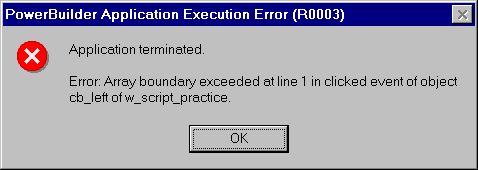
There are only two controls in the w_script_practice window. The following code refers to the 10th element from the Controls[] array, which is not in the window.
If you refer to array elements, outside of the declared size, a run-time error occurs, which in turn terminates the application unless an error handing script is present.
| Home | Previous Lesson: Labels, GOTO Statement Next Lesson: Exit Statement |