| Home | Previous Lesson: Sorting & Filtering Data Next Lesson: Data Retrieve Properties |
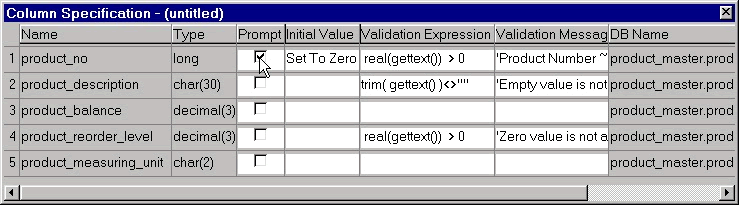
There may be situations where user wants to query on different criteria, which you don't know at design time. It is a tough job but for PowerBuilder. In PowerBuilder, it can be done very easily by turning on the Prompt option for each column you want to prompt the user. If you don't see 'Column Specification' view, display it by selecting 'View > Column Specification' menu option. You will find the Prompt option placed next to Type column. In the following picture, Prompt property is turned on for product_no column.
To see how it works, create a DataWindow without any WHERE clause and specify the Prompt for Criteria columns as shown in the picture and preview the DataWindow. For the selected columns, PowerBuilder prompts for the arguments.
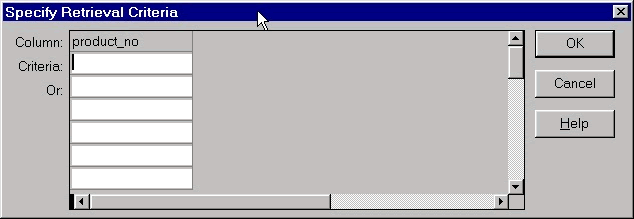
There is another method, Query Mode, for querying the DataWindow, which will be explained in later sessions. 'Prompt for Criteria' method of querying is good only when you want to restrict the user into querying on few columns. For example, to restrict the user from querying on those columns who do not have indexes.
| Home | Previous Lesson: Sorting & Filtering Data Next Lesson: Data Retrieve Properties |