| Home | Previous Lesson: Query as a Data Source Next Lesson: Stored Procedures as Data Source |
When data retrieval is considered, databases, SQL and queries cross the mind. However, they aren't the only ones for storing data; you can retrieve data from an external source such as a text file.
The reason we use DataWindow even though we are not dealing with the database is its power. It has a good sorting, filtering, printing, and whole lot of other good features, which work efficiently with only few lines of code.
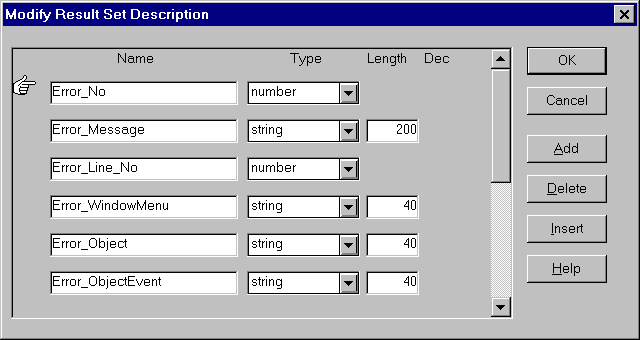
An External Source means that PowerBuilder doesn't know the source of the data. That means that we need to define fields for the Data Window along with their data type. SQL statements can't be defined for these types of DataWindows. When you try to create a DataWindow with external data source, PowerBuilder prompts for the fields' definition as shown below:
This is like the database table definition, providing the column names, data types and lengths. To populate an external DataWindow programmatically we use file functions or embedded SQL statements in the PowerScript code.
We need an external DataWindow for the Product_Management_System, so create it and declare the result set as shown in the above picture.
Click the OK button and save the DataWindow as d_error_information. We'll be using this DataWindow to display error information if something goes wrong in our application. We could use window controls such as StaticText, SingleLineEdit and MultiLineEdit instead of this DataWindow, but if we do, we would have to call a whole string of print functions to print the error information. By using a DataWindow we can print all the information with only a single print function.
| Home | Previous Lesson: Query as a Data Source Next Lesson: Stored Procedures as Data Source |