| Home | Previous Lesson: Connecting to a Data Source Next Lesson: Switching Between Views |
This method is often used to select data from a single table even though multiple (related) table selection is possible. Defining a data source is as simple as selecting the table and the corresponding wanted columns followed by a sort order and a selection criteria (to obtain specific set of data).
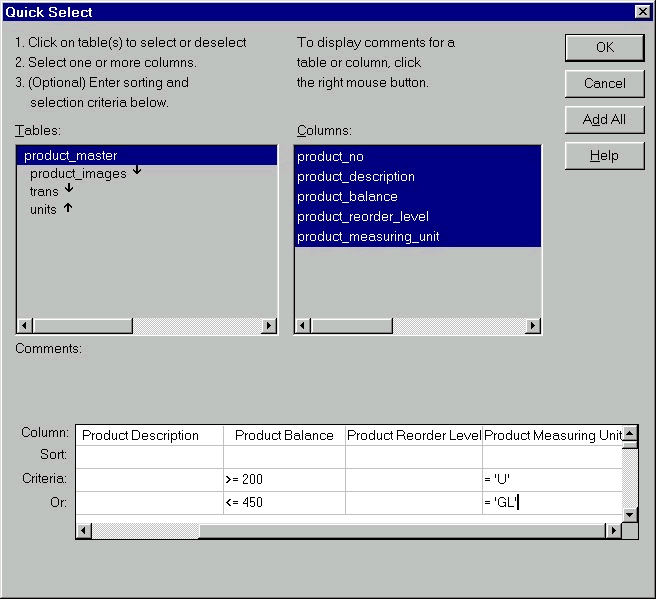
All the available tables and views are listed in the Tables ListBox and when you highlight one of those entries, the related columns will be displayed in the Columns list. Clicking with the right-mouse button on a table or a field name will display comments associated with it.
The interested table and the associated fields are selected by highlighting them. PowerBuilder will add the selected fields in the box located at the bottom of the window. To further refine the information that is returned to the PowerBuilder application specify a sort order (either ascending or descending) and any selection criteria for each column.
By reviewing the Select view of this DataWindow you can see that we've asked for all columns from the product_master table to be displayed. We've specified an ascending sort order on the product_measuring_unit column along with few restrictions on what data should display.
If there are multiple criteria in the Criteria row then all the conditions in the row must be met - this is known as a logical AND. The OR row is used to specify OR conditions, in other words one of them must be met. The following is the SQL statement.
SELECT
"product_master"."product_no",
"product_master"."product_description",
"product_master"."product_balance",
"product_master"."product_reorder_level",
"product_master"."product_measuring_unit"
FROM "product_master"
WHERE ((("product_master"."product_balance" <= 200)
AND ("product_master"."product_measuring_unit" = 'U'))
OR (("product_master"."product_balance" >= 450)
AND ("product_master"."product_measuring_unit" = 'GL')))
ORDER BY "product_master"."product_measuring_unit" ASC
You can also use the keywords AND and OR in a criteria for a column. PowerBuilder automatically converts this graphical definition into SQL syntax before requesting the information from the database. While performing this conversion it looks at the layout of the criteria and places ANDs and ORs in the appropriate places in the SQL statement.
Criteria can contain names of other columns in the table. This allows us to compare two dynamic values rather than having to stick with static entries (constant values). For example, we could have specified criteria that required the product_reorder_level to be greater than the product_balance.
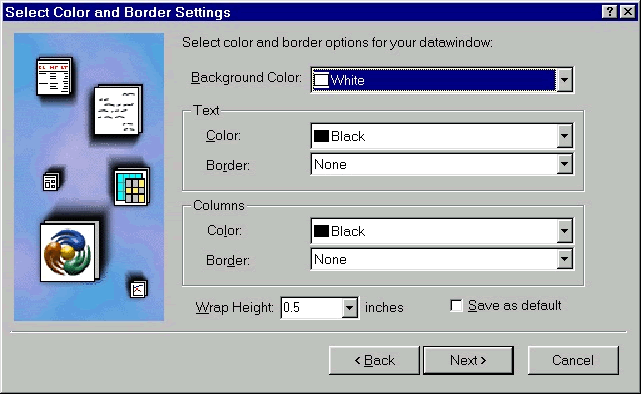
Click on the Next button. The next wizard prompts you for the colors you want to apply to the DataWindow background, column headings/labels and the data. After choosing those colors, click on the Next button and click on the Finish button.
You will be taken into the DataWindow painter where you can see design and preview views.
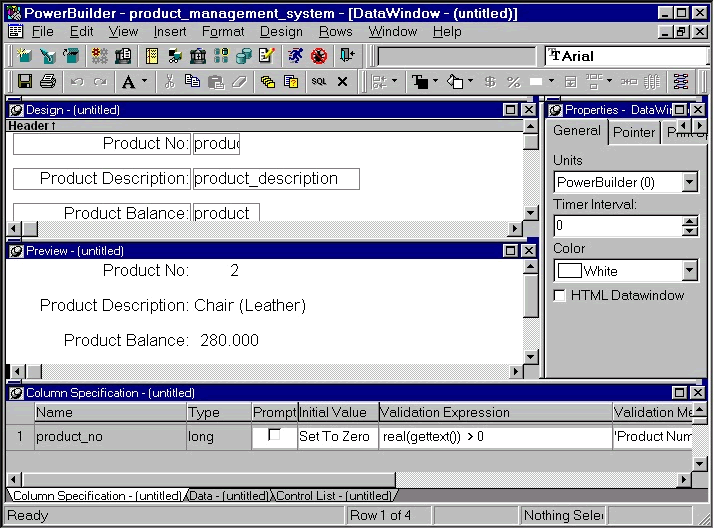
The layout here represents the FreeForm presentation style. Let us don't go into details about the layout since we will be learning about it in the Presentation Styles section, so don't do anything at this time.
| Home | Previous Lesson: Connecting to a Data Source Next Lesson: Switching Between Views |