| Home | Previous Lesson: Extended Attributes Next Lesson: Date and Time Formats |
Format style specifies how the data should be presented. For example, you might want to have two different format styles, one in millions format (comma after every three digits) and another in metric format. Note that these are specific to PowerBuilder. PowerBuilder stores these values in the database. Other applications such as Excel, Visual Basic, etc. don't have these format styles. There are two steps in completing the format style definition.
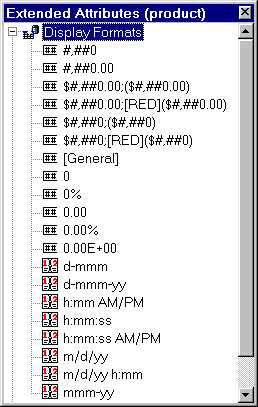
Select 'Display Format' folder from the Extended Attributes sheet. You see pre-defined format styles. In most of the cases, they would serve the need. To define a new one, Select New popup menu option or Object > Insert > Display Format menu option.
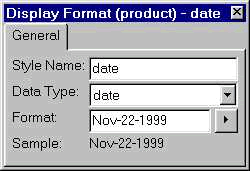
Before you start the definition, you need to select a datatype and provide a name to the format style. Provide the definition in the Format prompt. You can check the formatting by typing a number into the 'Test Value'. PowerBuilder will apply the formatting and display the result.
The symbol used in the format mask depends on the data type that has been defined for the field. The symbols you can use for string and number data types are as follows:
Note that the Format attribute doesn't limit the number of characters in the field - we've already done this by specifying the width of the field in the table definition.
|
Symbol |
Numeric Datatype |
String Datatype |
Meaning |
|
# |
X |
Numeric character - this symbol rounds off trailing integers automatically. |
|
|
$,�,%,-,.,/ |
X |
X |
Displays the appropriate punctuation character. |
|
@ |
X |
X |
Any character. |
|
'....' |
X |
X |
Used to display characters between the quotes. |
|
(....) |
X |
Used to specify a different format for negative numbers. |
|
|
; |
X |
Used to separate formats, such as for positive and negative numbers. |
|
|
[GENERAL] |
X |
Lets PowerBuilder choose a suitable format. |
|
|
[CURRENCY] |
X |
Lets PowerBuilder choose a suitable format based on the current Windows International settings. |
|
|
[BLUE] |
X |
X |
Used before the format mask to display in the specified color. |
An example to achieve the effects of formatting symbols would be:
$#,###.##;[RED]($#,###.##)
This formatting will display a positive numeric input with a dollar sign, thousand separators and two decimal places in the default font color. Any negative inputs use the same formatting except that the font color is red.
For more explanation and examples look in PowerBuilder's on-line help.
| Home | Previous Lesson: Extended Attributes Next Lesson: Date and Time Formats |