| Home | Previous Lesson: Maintaining Table Security Next Lesson: Connection Options |
Remember the first thing we did in the session creating a database. From there on, everything that was created is stored in the product database. While creating a database, there are few things that happen behind the scenes.
What is a database profile? A database profile is nothing but an ASCII file. It consists of details that are required to connect to a database, such as login name, password, the driver that is used to connect to a database and so on. When you close the database painter, PowerBuilder stores the database profile name that is used to connect to the current database. When you invoke database painter for the next time, PowerBuilder reads the database profile name and connects to the database specified in the database profile using the parameters specified in the database profile file.
All database profile information is stored in either the registry or in a file that has .INI extension. When you install PowerBuilder, it installs few .INI files such as pb.ini, pbodb070.ini, etc. Each profile file is logically divided into sections.
Every database profile is stored in the PB.INI file, located in the PowerBuilder directory. The general information related database is stored in a section called [Database]. The [DBMS_PROFILES] section in PB.INI contains a list of the current database profiles, currently available profiles and a history of profiles which have been used.
Each section name is enclosed in a square bracket. All the variables and values related to a section are listed under that section. Under a section, each line consists of a variable name and its value separated by a '='. Following is a listing of database sections from pb.ini file.
[DBMS_PROFILES]
CURRENT=product
PROFILES='product','EAS Demo DB V3'
[Profile EAS Demo DB V3]
DBMS=ODBC
Database=EAS Demo DB V3
UserId=
DatabasePassword=
LogPassword=
ServerName=
LogId=
Lock=
DbParm=ConnectString='DSN=EAS Demo DB V3;UID=dba;PWD=sql'
Prompt=0
[PROFILE_DATABASE BACKUP]
DBMS=ODBC
Database=EAS Demo DB V3
UserId=
DatabasePassword=
LogPassword=
ServerName=
LogId=
Lock=
DbParm=ConnectString='DSN=EAS Demo DB V3;UID=dba;PWD=sql'
Prompt=0
Vendors=ODBC,OLE DB,JDM JDBC Microsoft VM,JDS JDBC Sun VM,SYC Adaptive Server Enterprise,O84 Oracle 8.0.4/8.0.5,DIR Direct Connect Interface
AutoCommit=0
AutoQuote=1
Columns=8
ForeignKeyLineColor=0 0 255
IndexKeyLineColor=255 0 0
PrimaryKeyLineColor=0 128 0
NoCatalog=No
ReadOnly=0
ShowIndexKeys=1
ShowReflnt=1
StayConnected=1
TableDir=1
TableListCache=1800
TableSpace=*
TerminatorCharacter=;
HideComments=0
ShowRefInt=1
[Profile product]
DBMS=ODBC
Database=
UserId=
DatabasePassword=
LogPassword=
ServerName=
LogId=
Lock=
DbParm=ConnectString='DSN=Product;UID=DBA;PWD=SQL'
Prompt=0
AutoCommit=0
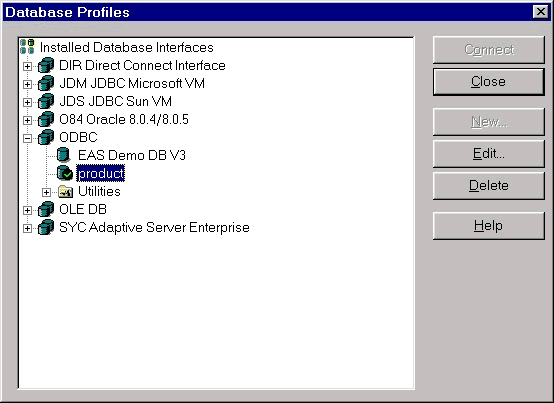
Let's see how to setup these database profiles. Select Window > Database 'Profile menu' option. The improved and redesigned database profile dialog box in version 7.0 displays existing database profiles using a TreeView control sorted by the database interface. Expand ODBC folder, select Product and click on Edit button.
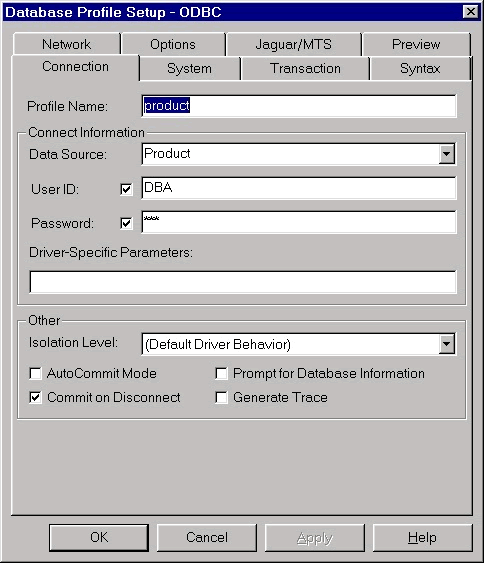
The options that are available in this dialog box vary between database interface. The picture shows options for database interface ' ODBC'.
| Home | Previous Lesson: Maintaining Table Security Next Lesson: Connection Options |