| Home | Previous Lesson: MDI Frame with MicroHelp Next Lesson: Summary |
We've already explained how to preview a window after you paint it. In the preview mode view how the window looks like. If there are scripts they won't execute in the preview mode. There are two ways of running the window. One method is, write script in the application object's script and run the application. This method is good when you want to test the whole application, or when this window is dependent on the application object events. Sometimes, you may want to test the window alone.
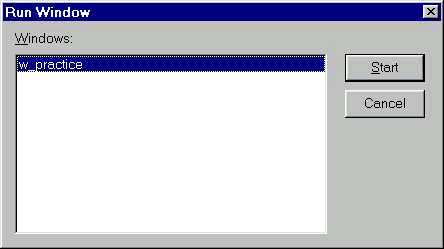
If you are shortcut favorite press Ctrl+Shift+W or click on the  icon from the Powerbar or select File > Run > Preview from the menu. If you haven't saved the changes, PowerBuilder prompts for saving the changes. Using the shortcut brings the dialog box shown in the picture, other options will bring the new dialog box introduced with v7.0. Irrespective of the window that is open currently, you can run any window. Note that, while running the window, appropriate scripts will execute.
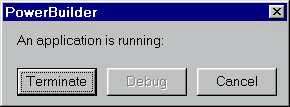
Sometimes, you might have a window with NO "Titlebar" and want to test the window alone. You can do it, no problem. The only problem would be closing the window with no CommandButton with script in it to close the window. In this situation you can't come back to the development environment. What you could do is switch to "PowerBuilder development environment (keep pressing Alt+Tab key combination till you see "PowerBuilder - Your application Name" task). PowerBuilder prompts you as shown in the picture. Clicking on the Terminate button will stop running the window.
| Home | Previous Lesson: MDI Frame with MicroHelp Next Lesson: Summary |