
| Home | Previous Lesson: Powerbar Next Lesson: Stylebar |
As explained in previous sections, painters such as Window painter, Menu painter, DataWindow painter can be invoked from the Powerbar. Once you invoke a painter, you will see another toolbar called Painterbar along with the Powerbar. Unlike Powerbar where the toolbar icons are static, Painterbar toolbar icons are dynamic. For each painter you invoke different toolbar icons are available.
If you invoke the window painter, you will see icons required to paint a window - such as an icon to paint a line, rectangle, CommandButton, etc.
 Invoke window painter by selecting File > New from the menu and double clicking on the window icon in the 'Objects' tab page . Have a look at the toolbar icons displayed in the Painterbar (don't worry, if you don't know what each icon stands for; you will be learning them in the window painter).

Now, invoke the menu painter by selecting File > New and double clicking on the Menu icon in the 'Objects' tab page. You will notice that Painterbar has different icons compared to the window painter toolbar icons.

Close the menu painter by clicking on the  icon. Now, you are back in the window painter.
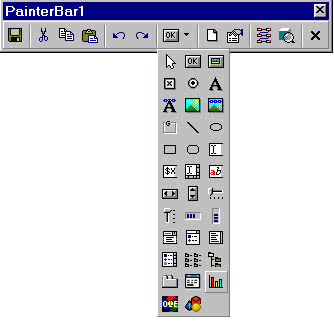
Toolbar icons that contain down arrow on right-hand side are DropDown toolbars. For example, the seventh icon from the left-hand side on the second row in the window Painterbar is a DropDown toolbar. The purpose of DropDown toolbar is to reduce the space needed for a toolbar.
| Home | Previous Lesson: Powerbar Next Lesson: Stylebar |