| Home | Previous Lesson: Adding and Removing a Pane Next Lesson: Summary |
Most of the applications have their own proprietary keyboard shortcuts, but, very few of them allow you to customize them. If you have a favorite editor/application in which you work most, isn't it better to have the same keyboard shortcuts in all applications you run.
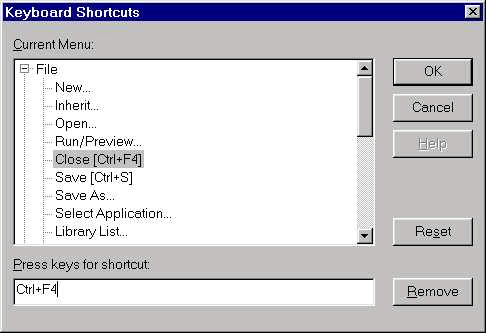
Select Window > Keyboard Shortcuts from the menu to display Keyboard Shortcuts dialog box as shown in the picture. Please note that, the customization is context sensitive, meaning, PowerBuilder displays only those menu items that display currently. If you are in the Window painter, you see different menu options for customization and see different ones in the Menu painter. That means, the same menu option can have different keyboard shortcut in different painters. For example, you can set Ctrl+W to File > Close in the window painter and Ctrl+M for the same in the Menu painter.
To customize, select the menu option you want to customize from the dialog box and click on the edit box for 'Press keys for shortcut' and press the shortcut key you want to assign. Click on Remove button, if you want to remove the shortcut.
All most all applications display recently opened objects under File menu. In some applications such as MS-Word, you can specify the number of recently opened object names to display. In this version PowerBuilder classified these objects into three categories, Objects, Applications and Connections.
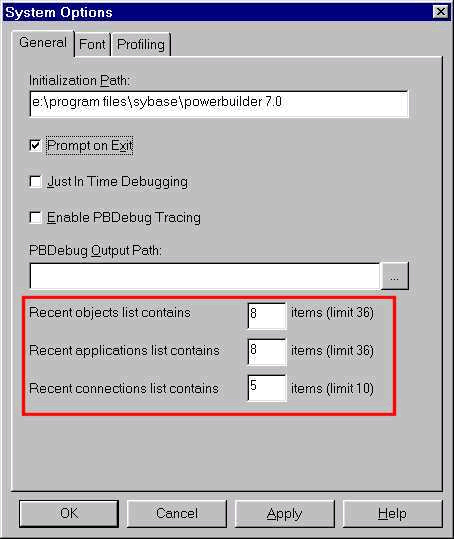
You can specify how many object names you want to see under each category by selecting Window > System Options from the menu. You can display 36 items in the first two categories and 10 connections. Other option that is worth noting at this time is 'Prompt On Exit'. All other options are advanced and are explained in detail in the sessions ahead.
| Home | Previous Lesson: Adding and Removing a Pane Next Lesson: Summary |