| Home | Previous Lesson: OLE Columns In the DataWindow Next Lesson: OLE Control In the DataWindow |
As explained earlier, OLE Database BLOB is used to retrieve date from BLOB data type column and save back to the database. But, it doesn't allow you to use OLE for other data type columns. You may want to allow users editing the database data in their favorite application, say, Word, Excel and apply all the validation in PowerScript and save the changes back to the database. You can accomplish this with DDE, but it needs lot of programming and error handling.
With version 5.0, PowerBuilder allows you to present data in the OLE presentation style, i.e., retrieve data from the database and present the data to the user in one of the OLE server, say, Word, Excel, PowerPoint, etc. PowerBuilder takes care of formatting the data according to the OLE Server requirement and sending it to the OLE Server and getting the data back and formatting back to the PowerBuilder format.
As a programmer, what you need to do is, just simply select OLE presentation style, instead of one of the traditional presentation styles. That's all, you are done. For example, let us present all the product information to the user in Word 6.0. To do this, invoke the DataWindow painter and select 'SQL Select' data source and OLE Presentation Style.
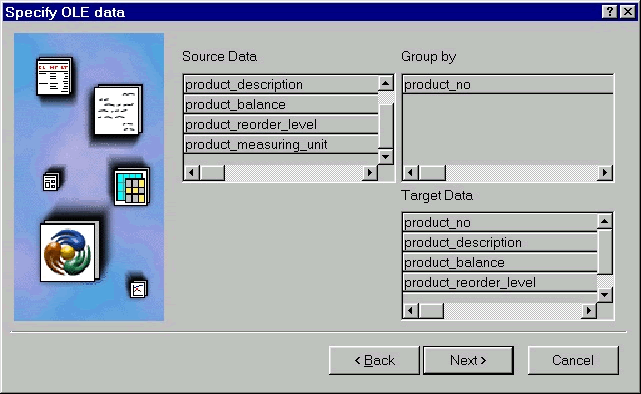
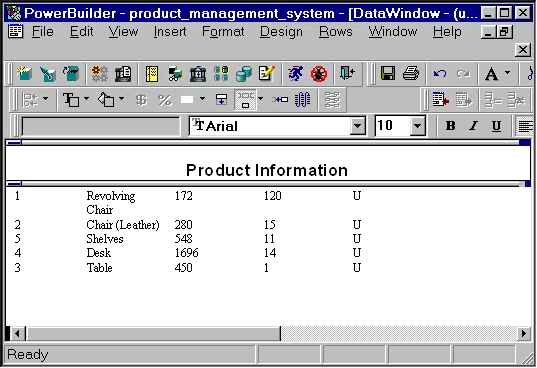
Select product_master table and select all the columns and click on SQL toolbar icon. Select 'Microsoft Word Document' from the "Insert Object" dialog box. Drag-and-Drop all the columns from the "Source Data" List Box into the "Group by" List Box. PowerBuilder automatically groups the data into the specified groups before sending to the OLE Server. PowerBuilder automatically adds appropriate aggregate function for each column in the 'Target Data' ListBox. Double click on each column and remove the aggregate function definition for each column. PowerBuilder automatically opens the OLE Server, MS Word in this example. Type what ever you want to see such as headings, format it and select 'File > Close &Return Data to Untitled' menu option and you will be back to PB. If you ever want to edit the data you typed in OLE Server, display popup menu in the DataWindow design view and select Open menu option.
| Home | Previous Lesson: OLE Columns In the DataWindow Next Lesson: OLE Control In the DataWindow |