| Home | Previous Lesson: Editing/Printing the Object In the OLE Control Next Lesson: OLE Columns In the DataWindow |
When you invoke the OLE Server to edit the OLE object that is placed in the PowerBuilder window, OLE Server will either invoke in-place or in its window. When the document is embedded, OLE Server starts in its window. When this happens, OLE Server will display its own menu in its own window. When the OLE Object is embedded, OLE Server invokes in the PowerBuilder application window, of course, the OLE Server should support OLE. When OLE Server starts, it will display its menu and toolbar by replacing the PowerBuilder application's menu and toolbar by default.
PowerBuilder gives some control on PowerBuilder menus, i.e., whether to display or not, if you decide to display, then how do you adjust them with the OLE Server menu items. These options you can set in the menu painter. If you select "Style" tab, when the cursor is on the menu bar items(You can't set these for the menu items, which makes sense), you can see few options in the 'Menu Merge Options' DropDownListBox.
The In Place attribute is set only for menu bar items, not menu items. Some useful options are:
|
Option |
Description |
|
Exclude: |
When the menu bar item is set to Exclude, it will not be displayed in the resulting menu. |
|
Merge: |
The menu bar item will be merged with the server application menu. |
|
File: |
This will display the menu bar item in the place occupied by the "File" menu option, that is, the first option on the menu. |
|
Window: |
This will display the menu bar item in the place usually occupied by the "Window" menu option, that is, the second option from the right. |
|
Help: |
This will display the menu bar item in the place usually occupied by the "Help" menu option. |
|
Edit: |
This will display the menu bar item in the place usually occupied by the "Edit" menu option. |
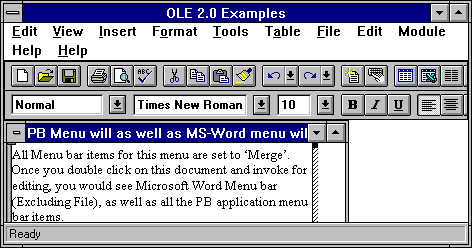
To see this working, we've included several windows in the OLE2.PBL library, which contain an OLE control containing an embedded Word 6.0 document.
Now let's see how to use OLE combining with the DataWindow.
| Home | Previous Lesson: Editing/Printing the Object In the OLE Control Next Lesson: OLE Columns In the DataWindow |