| Home | Previous Lesson: OLE Features Next Lesson: Drag And Drop |
With visual editing, the user can double-click an object in a compound document and interact with the object right there, without switching to a different application window. The menus, toolbars, palettes, and other controls necessary to interact with the object temporarily replace the existing menus and controls of the active window. In effect, the object application appears to "take over" the compound document window. When the user returns to the compound document application, its menus and controls are restored.
Visual editing represents a fundamental change in the way users interact with personal computers. It offers a more "document-centric" approach by allowing the user to focus primarily on the creation and manipulation of information rather than on the operation of the environment and its applications. This approach allows users to work within a single context - the compound document.
Visual editing can include a variety of operations depending on the capabilities of the object. Embedded objects can be edited, played, displayed, and recorded in-place. Linked objects can be activated in place for operations such as playback and display, but they cannot be edited in-place. When a linked object is opened for editing, the object application is activated in a separate window. To return to the compound document, the user must either close the object application or switch windows.
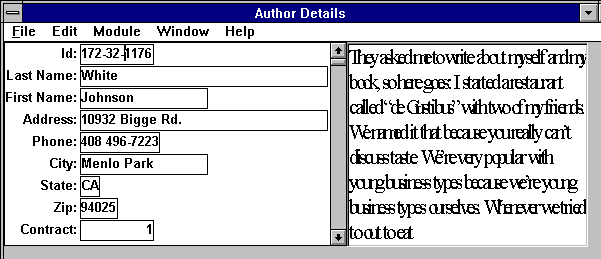
The following figure shows what happens to an application when the user decides to activate an embedded object in-place for editing. In the top window, the embedded document appears well integrated into the PowerBuilder application window. However, when the user double-clicks the document to start in-place editing, the PowerBuilder application undergoes several changes as is demonstrated in the bottom window in the above figure.
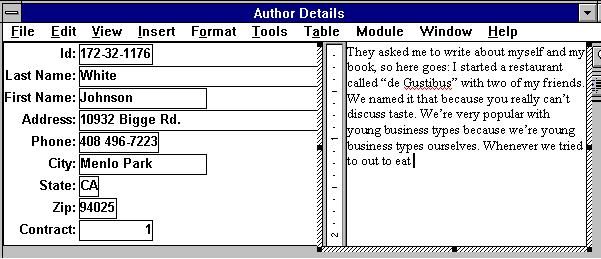
The title bar changes to reflect the name of the object application; that is, the word processor program. The menu is the result of the PowerBuilder application and the word processor applications merging their individual menus. The word processor changes in appearance; hatch marks surround its border to indicate its activated state. In the above picture, you can also see the red underlines in the text which is the result of MS-Word automatic spell-checking. When the user has finished editing and clicks outside the document's border, the window once again looks like it belongs to a PowerBuilder application.
| Home | Previous Lesson: OLE Features Next Lesson: Drag And Drop |