| Home | Previous Lesson: The RemoteSend Event Next Lesson: Summary |
This event occurs whenever a client requests data from PowerBuilder. PowerBuilder doesn't have easy referable data locations, such as the cells in a spreadsheet, so, we have to customize the data that is requested in the DDERequest command from the client:
String lApplication, ltopic, litem, lDataToclient
long lTotRows, i
int lRetVal
lRetVal = GetDataDDEOrigin( lApplication, lTopic, lItem )
lItem = Upper( lItem )
lTotRows = dw_1.RowCount()
For i = 1 to lTotRows
   If Pos( lItem, "PRODUCT_NO" ) > 0 Then
      If i = 1 Then
         lDataToclient = lDataToclient + string( &
                         dw_1.GetItemNumber(i,"product_no"))
      Else
         lDataToclient = lDataToclient + char(5) + &
             string( dw_1.GetItemNumber(i,"product_no"))
      End If
   End If
   If Pos( lItem, "PRODUCT_DESCRIPTION" ) > 0 Then
      lDataToclient = lDataToclient + "~t" + &
      dw_1.GetItemString(i,"product_description")
   End If
   If Pos( lItem, "PRODUCT_BALANCE" ) > 0 Then
      lDataToclient = lDataToclient + "~t" + &
       String(dw_1.GetItemNumber(i,"product_balance"))
   End If
Next
SetDataDDE( lDataToclient )
RespondRemote( TRUE )
We simply loop through the data in the DataWindow control using the GetItemNumber() or GetItemString() functions, to retrieve the required data and add it to lDataToClient.
The ~t is a special character that is used to place a tab between each entry - this is the manual creation of a tab-delimited list. When we've gone through all the data, we send lDataToClient to the client using the SetDataDDE command.
Replace Open(w_dde) with Open(w_dde_server) in the application's open event. Run the application. Click on "PB As Server" button.
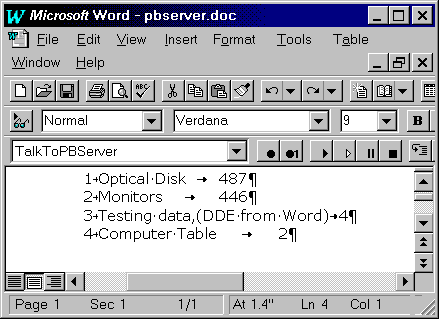
Now open up the PBSERVER.DOC document and run the TalkToPBServer macro. You should see the following information inserted into the Word document:
You can see that the description of product number 3 has been changed to display the test message, but was it changed in PowerBuilder? Switch back to the w_dde_server window and you'll see that the value in the DataWindow control has also been changed:
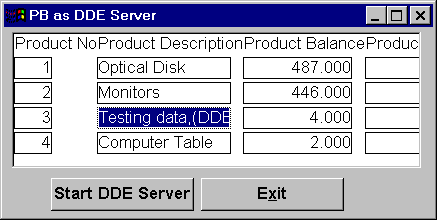
The value in the DataWindow object hasn't been changed, just the display in the DataWindow control. However, as in the last example, it would be easy to extend the code to retrieve and update the actual information in a database.
 DDE can be temperamental, so, if you do experience problems getting any of the examples to work, don't despair, try experimenting with different commands or the logic used in other examples. The first step in finding problems is to check the references to file names used in the code and macros to ensure that they correspond to your set up.
| Home | Previous Lesson: The RemoteSend Event Next Lesson: Summary |