| Home | Previous Lesson: Variables View Next Lesson: Breakpoints |
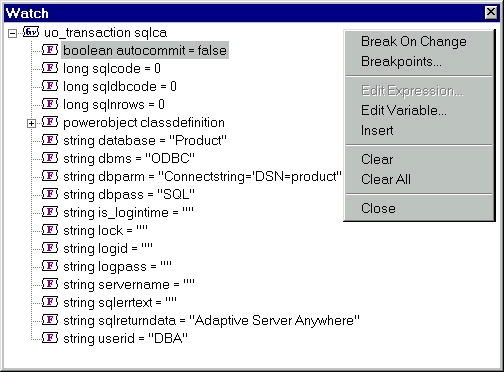
This view displays the variables that are put on the watch list. Also you can change the variable's value from this view.
As you can see, by moving amongst the variable listing, as the program runs, PowerBuilder displays the changing value of each variable or control. This feature allows you to track the progress of an application, allowing you to examine the cogs of the machine, rather than the results it produces.
What if you want to track two variables, that are located under different branches in the variables window at the same time? Hmm, we have a problem. PowerBuilder solves this problem by allowing you to set up a watch on a variable or property. This watch forgets about other related variables and controls, and just spends its time focused on one attribute.
By setting watches against key elements of the application, you'll be able to track the progress in a simple and easy-to-understand manner. To add a variable to the Watch view, display popup menu in the Watch view and select Insert menu option and provide the variable name.
| Home | Previous Lesson: Variables View Next Lesson: Breakpoints |