| Home | Previous Lesson: External User Objects Next Lesson: Custom Class |
Non-visual user objects are like any other object that you define in PowerBuilder, except that they have no visual or GUI component. They act just like classes in C++. These objects can have variables, events and functions associated with them and they allow you to implement encapsulation.
You need to declare variables of these classes and instantiate them. Do you remember the way instantiated a popup menu? In the same way, we can instantiate these classes. For ex:
ClassYouCreated lClassVariable
lClassVariable = CREATE ClassYouCreated
PowerBuilder automatically instantiates these classes for you, if you turn on the AutoInstantiate property. You can turn on this option from the popup menu, in "Class" user object painter. If you do so, you do not need to call the second line of code (shown above), i.e., the CREATE statement.
PowerBuilder comes with some standard classes, such as Error, Message, SQLCA and so on. You can create Class user object, by inheriting from one of these standard classes. Let's create a class uo_transaction, which inherits from the Transaction class.
Did you know that we don't have certain functionality in SQLCA? For example, there is no method defined to display the error message, and moreover there is no method defined to log when you login and logout of the database. May be we can create our own transaction class, by inheriting from the standard transaction class and adding the frequently used functionality and use this class instead of SQLCA.
Select File > New menu option and double click on the 'Standard Class' icon located under object tab page. Select Transaction from the ListBox. You will be presented with the empty work space. Remember, you can't paint any control in the workspace. Let's define a method (function) to display the error message.
// Function Name: uf_display_error
// Return Value: Integer
// Access: Public
// Parameters: string pm_message by value,
// string pm_button_type by value
Button lButton
Integer l_UserAnswer
If Upper(Pm_ButtonType) = "RETRYCANCEL" Then
   lButton = RetryCancel!
Else
   lButton = OK!
End If
If IsNull( Pm_Message ) Then Pm_Message = ""
l_UserAnswer = MessageBox( "Database Error", &
          "Error # " + String( This.SQLCode ) + "~n" + &
          "Error Message: " + This.SQLErrText + "~n" + &
          "Database Error # " + String( This.SQLDbCode ) &
          + "~n" + "Database Error Message: " + &
          This.SQLReturnData + "~n" + &
             Pm_Message, Exclamation!,lButton,1 )
Return l_UserAnswer
This function displays an error message along with the user specified message. You can ask the function to display Retry, Cancel buttons at the bottom of the message box.
Did we really implement polymorphism in the application? No. Let's implement it now. As you know, the above function takes two parameters. Let's define one more function with the same name, but WITH NO PARAMETERS. Let the compiler call the appropriate function depending on the parameter.
Define the other function uf_display_error with public access and integer as return type. Declare no parameters. Type the following code:
// Function Name: uf_display_error
// Return Value: Integer
// Access: Public
// Parameters: None
MessageBox( "Database Error", &
   "Error # " + String( This.SQLCode ) + "~n" + &
   "Error Message: " + This.SQLErrText + "~n" + &
   "Database Error # " + String( This.SQLDbCode ) &
   + "~n" + "Database Error Message: " + &
   This.SQLReturnData, Exclamation!, OK! )
Return 1
Save this class as uo_transaction and close the user object painter. Close all the open painters.
Do you know what we just did? We have created a class by inheriting from the Transaction class. Do you know what SQLCA is? SQLCA is a global variable of type transaction. The term 'type' means that, it is an instance of the specified class and can't be changed, i.e., you can't define new attributes or methods at that class, however you can change values of existing attributes. There is a difference between inheriting a class and declaring a type variable. When you inherit a class, you can define new attributes, methods and isntantiate that class. When you declare it as a type variable, you are instantiating a class as it is, without changing (adding new functions, events and attributes) it.
If you want to use this new class uo_transaction instead of SQLCA, you need to find and replace all occurrences of SQLCA with this new name. Right? NOooope.
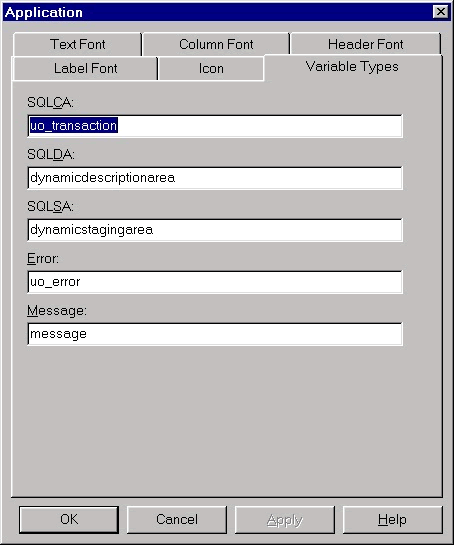
As explained earlier, SQLCA is a type variable of 'transaction'. Now, you created a class uo_transaction which is inherited from Transaction. If we declare SQLCA as an uo_transaction type variable, instead of Transaction, we need not change the code. Then the question is, how can we declare SQLCA as a uo_transaction type variable instead of Transaction?
That's all, we are done. Now, let's make use of the functions we defined at uo_transaction class.
Open the w_login window. Go to the Clicked event for the OK CommandButton. Delete the code from the line that starts with If SQLCA.SQLCode (including that line) till the end and replace it with the following code.
// Check for errors
If SQLCA.sqlCode <> 0 Then
   If SQLCA.uf_display_error( &
              "Do you want to try again ? ", &
              "RETRYCANCEL" ) = 2 Then
      Halt
   Else
      Return 0
   End If
Else
   Close( Parent )
End If
In this code, we are calling the function we defined at the user object level, instead of calling MessageBox() function. Save the changes and test it. How to test it? Just supply a wrong password and click the OK CommandButton. You will see the error message, as shown in the following picture.
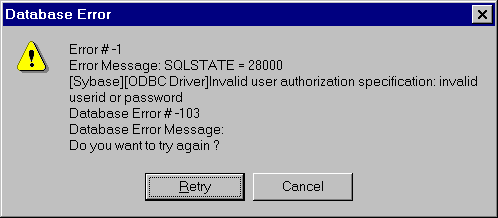
If you have successfully got into the application, instead of getting this error message, there must be something wrong somewhere, and where would that be?
The answer is simple, but, takes a while to explain. Invoke the database painter and select 'Window > Database Profile' menu option. Select Product from the list and click on Edit CommandButton. Remove values from the 'User ID' and 'Password' prompts located under the Connection tab page and uncheck both those options and click OK button.
When PowerBuilder reads this information, it reads the product profile (stored in .INI files and/OR in the Window's registry) and uses those values to connect to the database, since we are specifying the profile name in the DBParm parameter. That means, values specified in the DBParm takes precedence over other parameters (if you specify both). The conclusion is that, even if you provide wrong information in the w_login window, PowerBuilder sign you into the database successfully because, the correct password is stored in the database profile.
You will learn more on this topic, in the "Application Deployment" session. For now, let's concentrate on how to make PowerBuilder fail from logging, when a wrong password is supplied.
Let's remove the password from the profile file. We can do the editing of .INI files and windows registry right from PowerBuilder itself. We can't edit this profile now, because, we are using it to connect to the product database. To edit this, we need to connect to some other database temporarily.
Now, run the application and test the class user object functionality. After that, don't forget to connect to the product database, from the database painter, otherwise, PowerBuilder connects to the demo database, every time you open the Database painter.
| Home | Previous Lesson: External User Objects Next Lesson: Custom Class |