| Home | Previous Lesson: PowerBuilder's Class Hierarchy Next Lesson: Summary |
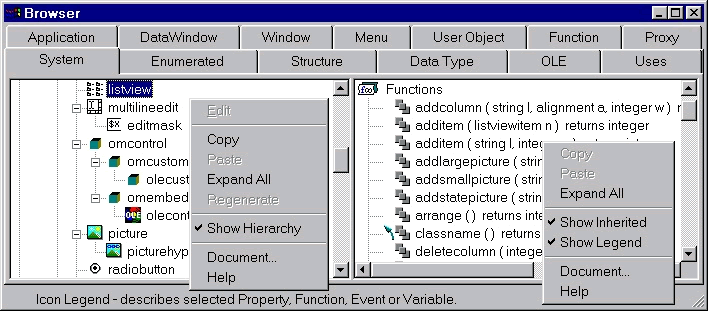
PowerBuilder's Object browser is really a classic and it has two uses. It allows you to view the class hierarchy in both PowerBuilder and your own application. It also allows you to view the properties, events and functions that are available in any created object. The system tab is where you can view PowerBuilder's internal class hierarchy. The other tabs allow you to view objects created in your application.
Objects are displayed on the left panel and on the right panel, various properties, events, functions, variables and structures associated with the selected object are displayed.
Clicking the right mouse button in the left panel expands each object. For example, expanding a window object would display objects that were painted in that window. You can display object hierarchies wherever inheritance is supported by PowerBuilder, i.e. in window, user object and menu tab folders.
The icons in the right panel indicate several things about the property, event, function, variable or structure under scrutiny:
 An anti-clockwise arrow shows that the property / variable / event / function / structure is inherited.
 The number of squares shows whether the property / variable / event / function / structure is public (three squares), protected (two squares) or private (one square).
 Other restrictions such as read-only are shown by half-colored squares.

The Document menu option in the popup menu allows you to display the information in rich text format, which you can later print or copy to the clipboard, for pasting into Windows word processor. The Copy menu option allows you to copy and paste properties, variables, functions, events and structures into your code. The browser is also useful for reviewing OLE objects and controls. While you are in the OLE tab folder, right panel is not available, instead all values are displayed in one panel.
The 'Uses' tab page displays all objects that are being used in each object in the current application starting from the Application object.
Object browser window is a modeless window. That means, you can keep this window open and work in your application at the same time.
| Home | Previous Lesson: PowerBuilder's Class Hierarchy Next Lesson: Summary |