| Home | Previous Lesson: Filtering Rows Next Lesson: Edit Control Buffer in the DataWindow Control |
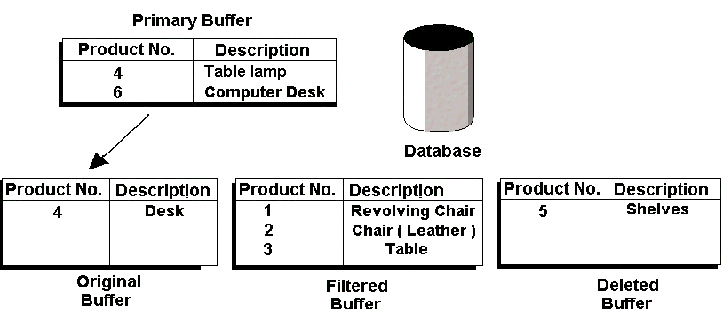
If you modify a row in the DataWindow, the row in the Primary buffer is modified and the original value is copied into the Original buffer. Suppose we change the description of product_no 4 from "Desk" to a "Table lamp", the buffers would look like this:
Note that this is the case only for rows that were originally retrieved from the database. If we modify product_no 6, nothing would be copied to the Original buffer, because this row was added to the results set after the data was retrieved from the database.
The changes made to the data will not be reflected in the database until the Update() function is called. Whenever you call the Update() function, PowerBuilder creates appropriate SQL statements such as INSERT, DELETE, UPDATE statements and sends them to the database for execution.
PowerBuilder creates the database statements (such as INSERT, DELETE, UPDATE) depending upon the row status. Row Status? A New term. Let's see what it is.
Each row and column in the DataWindow have certain statuses. When PowerBuilder retrieves data from the database, all the rows are in the NotModified! status. Please note that, the status is an enumerated datatype, i.e., ends with an exclamation mark. If you modify the value of a column in a row, PowerBuilder changes the row status to Modified! status. Now, say, you insert a record in the DataWindow. As you know, a freshly inserted row through InsertRow() has no data. In that case, PowerBuilder assigns, New! status to that row. When you put data in any of the columns in the newly added row, PowerBuilder changes the row status to NewModified!.
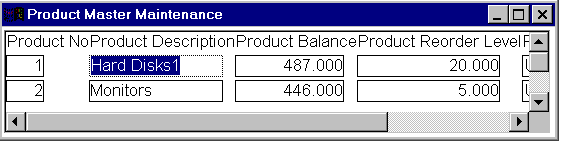
We said that, if you change a row, PowerBuilder copies the original value to Original buffer from the Primary buffer. Note that, PowerBuilder copies data only when you modify the row for the first time, and not every time. For example, if you have a DataWindow defined on product_master, as shown below. Say, you change the product_description column. PowerBuilder copies that row from Primary buffer to Original buffer because, you changed it for the first time; it doesn't matter which column you change. Now, say you change the product_reorder_level. PowerBuilder will not copy this time, because it already copied the values.
Now, let's see how PowerBuilder knows which SQL statement to create. What happens is that, PowerBuilder looks into each buffer one at a time.
|
Buffer |
Row Status |
PowerBuilder generates & sends the following statement to the database |
|
Deleted Buffer |
DELETE |
|
|
Filter Buffer |
- NONE - |
|
|
Primary Buffer ( New Record with some data in, at least in one field) |
NewModified! |
INSERT |
|
Primary Buffer (New Blank Row) |
New! |
- NONE - |
|
Primary Buffer (Changed Rows) |
DataModified! |
UPDATE |
|
Primary Buffer (Not Changed) |
NotModified! |
- NONE - |
From the above table, you can observe that, PowerBuilder doesn't take any action if it is a new blank row with no data. But, PowerBuilder generates an INSERT statement, if the record is new and has data in at least one field.
| Home | Previous Lesson: Filtering Rows Next Lesson: Edit Control Buffer in the DataWindow Control |