| Home | Previous Lesson: MDI Applications Next Lesson: Introduction |
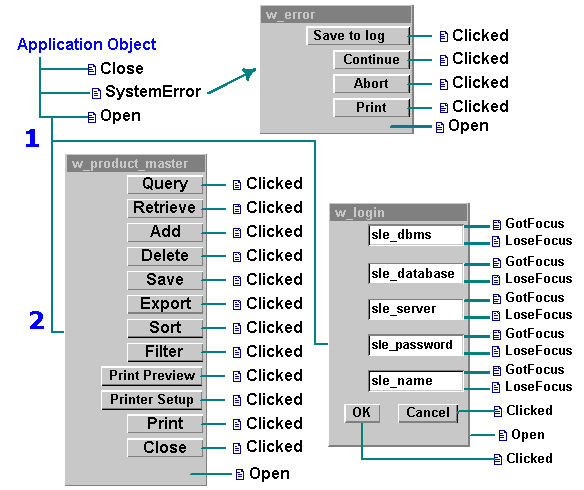
This section is meant for students who know PowerBuilder to an extent and would like to start with the 'Advanced PowerBuilder' course. If you are from course 1, you may be interested in the diagram given at the end of this topic. It gives an overview of the programs done in course 1.
In 'Introduction to PowerBuilder' course, students were introduced to painters and at the end of each session, they were given exercises to complete. (S)He also learned PowerScript basics and developed few windows, menus, DataWindows and other objects. (S)He started developing an application called 'Product Management System', which handles issues, receipts and returns of products. As part their project, they created a database named product.db (product.db.zip) along with the log product.log (product.log.zip). (S)he created a PowerBuilder library, product.pbl (product.pbl.zip), and all objects from the previous course is stored in that PBL.
Upon downloading the files, you need to uncompress and place them in '\workdir' directory. These files are compressed using WinZip 6.3 and so, you may need 6.3 or later version to uncompress them. If don't have the software to uncompress, download a copy of WinZip from http://www.winzip.com (site not managed by us). All the files are based on Windows 95, they should work both on Windows 95 and Windows NT. The database files are cross-platform compatible. PowerBuilder library should work fine on any MS-Windows platform, without changes.
If you haven't placed the uncompressed files on the 'C' drive or if you have placed them in any other directory, you need to edit w_login window's open and close events and remove the hard code of 'c:\workdir' from the script. You need to configure ODBC from the database painter and create a database profile product for the product.db. Before you proceed to the next section, you may want to run the application and test the database connectivity and also understand the functionality of the project. When you run the application, provide the following parameters to log onto the application.
|
Prompt |
Value you need to provide |
|
Login Name |
DBA |
|
Password |
SQL |
|
DBMS |
ODBC |
|
Database |
product |
The following chart gives you an overview of events/functions that have code in the 'Product Management System' application at this stage.
| Home | Previous Lesson: MDI Applications Next Lesson: Introduction |