| Home | Previous Lesson: Opening an Instance of a Window Next Lesson: Resizing the Controls Automatically |
In the previous session 'PowerScript - Database Operations', you have learned about events, user events, triggering events and so on. What we are going to do now is, define user-defined events first. Then, we move the code from CommandButtons to user-defined events. As a last step, we write code for the menu items, to trigger the user-defined events.
Open the w_product_master window. Go to the Script editor view and select '(New Event)' option from the second DDLB from left. Define the following events. Remember that after this, all the new events are available at the window level, i.e., w_product_master.
Type the following information for the appropriate prompts. Click OK once done.
|
Event Name |
Event ID |
|
ue_close |
pbm_custom01 |
|
ue_retrieve |
pbm_custom02 |
|
ue_query |
pbm_custom03 |
|
ue_add |
pbm_custom04 |
|
ue_delete |
pbm_custom05 |
|
ue_print |
pbm_custom06 |
|
ue_print_preview |
pbm_custom07 |
|
ue_printer_setup |
pbm_custom08 |
|
ue_export |
pbm_custom09 |
|
ue_sort |
pbm_custom10 |
|
ue_filter |
pbm_custom11 |
|
ue_save |
pbm_custom12 |
You must declare the user-defined events at the correct window level. If the events are declared at w_mdi_frame level, they are not available to the w_product_master window!
This completes our step number 1, defining user-defined events. Under step number 2, let's move the code from CommandButtons to user-defined events.
We will show you for one event, do for the rest to get experience.
Similarly, do for all the CommandButtons. Make sure you paste the code in the appropriate user event.
|
Copy Clicked event script from |
To the user-defined event at w_product_master |
|
cb_retrieve |
ue_retrieve |
|
cb_query |
ue_query |
|
cb_add |
ue_new |
|
cb_delete |
ue_delete |
|
cb_print |
ue_print |
|
cb_print_preview |
ue_print_preview |
|
cb_printer_setup |
ue_printer_setup |
|
cb_sort |
ue_sort |
|
cb_filter |
ue_filter |
|
cb_export |
ue_export |
|
cb_save |
ue_save |
For the ue_close event, type the following:
Close(This)
The code we have for cb_close CommandButton is: Close(Parent). Here, we changed it from Parent to This, because, ue_close is defined at the window level. You can't use Parent at the window event/function level, since a Window doesn't have any parent.
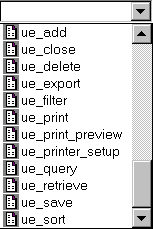
This completes step 2. To make sure whether you have copied code from all CommandButtons, invoke the script painter for the window. When you click on the 'Select Script' DropDownListBox (second from left), you should see script icons before all user-defined events, as shown in the following picture.
Once you confirm, delete all the CommandButtons from w_product_master window.
In step 3, we need to write script for the menu options.
Window l_Sheet
l_Sheet = ParentWindow.GetActiveSheet()
If IsValid( l_Sheet) then
   PostEvent( l_Sheet, "user_event_name")
End If
You need to write the above code for the clicked event of the menu items shown in the following table, in the left side column.
|
Clicked event of the Menu Item: |
Replace user_event_name with: |
|
File > Close |
ue_close |
|
File > Query |
ue_query |
|
File > Retrieve |
ue_retrieve |
|
File > Sort |
ue_sort |
|
File > Filter |
ue_filter |
|
File > Save |
ue_save |
|
File > Print |
ue_print |
|
File > Print Preview |
ue_print_preview |
|
File > Printer Setup |
ue_printer_setup |
|
Edit > New Record |
ue_add |
|
Edit > Delete Record |
ue_delete |
The code for each menu option is exactly the same. You simply replace the user_event_name in the last line with the relevant user event name, listed in the right side column in the above table. As an example, for File > Query menu option's code, replace user_event_name with ue_query, and don't make any spelling/typing mistakes.
The IsValid() function is used to check the validity of the object supplied as an argument. If you don't add this check to the code, PowerBuilder will generate a 'Null reference error' and will abruptly halt your application, when you attempt to close down a sheet when none of the sheets are open.
After checking for a window, the script calls the ue_close event using the PostEvent() function.
Now is the time to run the application and test if all the coded options are working properly or not. We are sure that, you will be finding limitation in the application. That is, even if you maximize a sheet, DataWindow controls dw_query and dw_product are in the same size, and the rest of the window area is not used. Don't you think resizing the DataWindow controls automatically will make the application better?
| Home | Previous Lesson: Opening an Instance of a Window Next Lesson: Resizing the Controls Automatically |