| Home | Previous Lesson: Encapsulation Next Lesson: Polymorphism |
Declaring a variable in Power Script is simple. The following example declares an integer variable 'li_counter'.
Int li_counter
You can initialize a variable at declaration time as shown below:
Int li_counter = 10
All numeric variables are initialized to zero by default at declaration time, unless you specify some value, as shown above. String variables are initialized to zero length, i.e., "". You can store up to 60000 characters in a string variable, however, when you declare a string variable, it won't occupy that much space; when you assign some value to the string, its length is automatically set to the length of the value specified.
When the user creates an object, it doesn't belong to a new type, but is an instance of an existing class. For example, if I create a new window, the resulting object is an instance of the window class inherited from Powerbuilder's window class. The resulting object is of type WINDOW, which has all the attributes and properties defined to that class.
Similar to traditional data type variables, you can declare PowerBuilder objects as variables. For example, the following example declares a window variable and an user object variable.
Window lWindow
uo_datawindow lDataWindow
When you declare a variable in an event script, it is destroyed as soon as the script completes execution. Variables declared in an event script are called 'local' variables. A variable in power script can have one of the four levels of scope. When considering Object Oriented programming, it's important to keep track of the variables you have access to, in different areas of the application. The following table summarizes these variable types:
Scope |
Description |
Local |
These variables are available only in the declared script and cannot be accessed by any other script or function. They are destroyed when the script or function completes execution. |
Instance |
Each instance of an object has its own set of instance variables. They are available to all object level scripts and functions, and is destroyed when the instance is destroyed. |
Shared |
These variables are available to all object level scripts and functions. They are shared among instances of an object and remain in memory even after the last instance of an object is destroyed. These variables are not available to its descendants. |
Global |
These are available to all scripts and functions in an application and are destroyed only when the application execution is completed. |
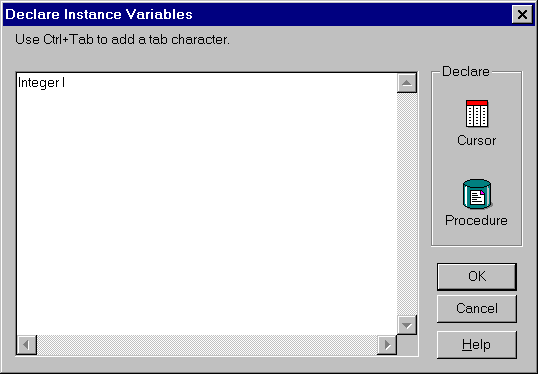
Local variables are declared in event or function script. To declare variables with other scope, you need to select "Declare/<Scope> Variables..." from the menu, where <Scope> is either Instance/Shared/ Global and declare the variable as shown below, in the dialog box.
As soon as the script execution completes, a local variable is no longer available. You may think that a local variable would be available in the same event script for the descendent; it's not true. Even though you can execute ancestor event script, ancestor and descendent event scripts are entirely independent, i.e., events /functions don't have access to other event/function's local variables.
Declaring an instance variable is nothing but adding new attributes to the object. The default attributes available at any PowerBuilder object are nothing but instance variables, declared at the object by PowerSoft. You can change the attributes, by specifying the values as you paint the object or at run-time using scripts. For example, take the Window painter. You paint a Window in the Window painter and specify certain attributes, such as window type, color, title, the associated menu and so on at design time. However, you can change the title of the window at run-time using the following code:
Window_Name.Title = "New Title"
Similarly, you can also access the declared instance variables. For example:
Window_Name.ib_RegularClose = True
The contents of instance variable of an object, in each instance, are independent. In contrast, as the name says, the shared variable is shared among instances of the same object. Even though you can't access a shared variable after closing all the instances of an object, the variable content is retained in the memory. When another instance is created, the previous value is still there. Creating instances is explained later in this chapter.
You can declare a global variable and a local variable with the same name. In versions prior to 5.0, you can't access the global variable, wherever in the script, local and global variables are declared with the same name. With version 5.0, compiler gives you an informational message, and you can access both as shown below, even when their names are same:
var1 = 100 // Sets
the local variable
::var1 = 200 // Sets the global variable
"::" ( double colon ) is the global scope operator and allows global variable access from the script, wherever the same variable is declared as a local variable.
If you have declared instance and global variables as same, referring without any prefix would refer to the global variable. Note that, doing the same with local and global variables would refer to the 'local' variable and not the global. You need to use "This" keyword to access the instance variable.
// Global and instance variables are declared same.
This.var1 = 100 // Sets instance variable
var1 = 100 // Sets global variable
::var1 = 100 // Sets global variable
// Global, instance and local variable are declared same.
This.var1 = 100 // Sets instance variable
var1 = 100 // Sets local variable
::var1 = 100 // Sets global variable
As we have seen, when instances from generic classes are created, they acquire two types of variables: instance and shared variables. The instance variables are used to hold any information that is directly related to that instance of the object, while shared variables hold information that is applicable to all of the instances derived from their associated class.
This scoping of variables can be very useful. In certain circumstances, it becomes even more necessary to further refine the availability of these variables, throughout the application. You must remember that even though an instance variable holds information directly related to the working of that instance, it's still available for interrogation and manipulation by other objects in the application.
To solve this problem, PowerBuilder provides Access Levels. Access levels say, which object can access the specified variable. You can specify three different access levels:
Access Level |
Description |
Public |
Accessible by all objects in an application - this is the default access level for all user defined objects. Global variables are always public. |
Protected |
Only accessible by that object and also by its descendant objects. |
Private |
Only accessible by other functions and scripts declared for the same object. Shared variables are always Private. |
 |
These user defined access levels only apply to instance variables, because other variable types have access levels that can't be changed. |
By default all instance variables are public. To specify other access level to instance variables declared at the object, specify the keyword private or protected before the data type. For example:
Private Int ii_counter1, ii_counter2
When you specify an access level, all the following variables are assigned that access level until another access level declaration is encountered. In the following example, all the variables will be Private, until it encounters either Public or Protected.
Private:
Int ii_counter1
Int ii_counter2
Protected:
Int ii_counter3
With version 5.0, further restrictions ( listed below ) can be applied on variables.
Modifier |
Description |
PrivateRead |
Only the defining class can read. |
PrivateWrite |
Only the defining class can write. |
ProtectedRead |
Only the defining class or direct descendants can read. |
ProtectedWrite |
Only the defining class or direct descendants can modify. |
To support new restrictions, the syntax is modified as follows:
{Visibility}{ReadAccess}{WriteAccess}<data type><variable name>
Declaring a variable "Protected PrivateRead PrivateWrite" makes the variable visible and prevents its descendants from declaring the same variable again. PowerBuilder gives an informational message as shown below, when you try to declare it again, but won't prevent you from saving the object.
Information C0148: The identifier 'ii_wo_var1' conflicts with an existing property with this name. The new definition of 'ii_wo_var1' will take precedence and the prior value will be ignored until this version of 'ii_wo_var1' goes out of scope
If you try to read or modify the variable in the descendent scripts, you see the following message. In short, declaring the same variable in the descendent is of no use.
Error C0158: The
property "ii_wo_var1" was found in class "w_parent", but insufficient
rights are available to read its value.
Error C0143: This property only be modified by an event or function in it's parent class.
In some cases, like the following code, it won't prevent you from declaring and initializing it, at the same time.
// Ancestor
Protected PrivateWrite ii_wo_var1 = 100

// Descendent
/* You will get information message, but it won't
 prevent you from declaring it. */
ii_wo_var1 = 200

// In the script
// The MessageBox() displays 200
MessageBox( "Value in descendent", ii_wo_var1 )
The following table lists possible combinations and its validity.
Read/Write Modifier/ Visibility Modifier |
Public |
Protected |
Private |
ProtectedRead |
� | ||
ProtectedWrite |
� | ||
PrivateRead |
� | ||
PrivateWrite |
� |
Two types of functions can be declared in PowerBuilder; global functions and object functions. Declaring a function in function painter becomes global function. To declare a function at an object level, you need to select "Declare/User Functions" in the function painter. Global functions are always public. You can specify access levels for object functions in the function declaration dialog box, as shown below:
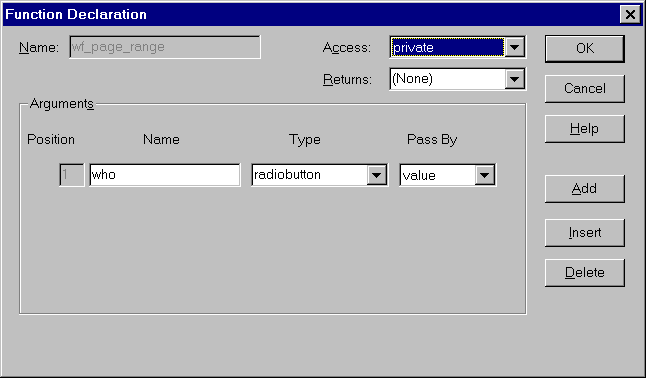
You can't specify Read/Write modifiers for functions, which makes sense.
The following table lists the differences between events and functions.
Event |
Function |
||||||||||
Executing a non-existing event returns null value. |
Executing a non-existing function, generates error and it has to be taken care in the error handling. |
||||||||||
An event is always public, and can be called by any object. |
You can define access levels to a function. |
||||||||||
In the descendent object, you have the option of extending or overriding an event script. |
Declaring the same function with the same interface in the descendent object always overrides the ancestor function. |
||||||||||
When calling an event, the search starts from ancestor down to the object from where it is called. |
The searching order for unqualified names is done in the following order:
|
||||||||||
Events can't be overloaded. |
Functions can be overloaded. |
It requires only one line of code to create and display an instance of an object on the screen. The following script would create an instance of Window, Sheet and User Object respectively, with and without parameters:
/* Create an instance
of a window in memory and
display the created window on the screen */
// Open() Format 1,2
Open( WindowVariable {, ParentWindowVariable} )
Open( WindowVariable, WindowNameString {, &
ParentWindowVariable} )
The first format opens an instance of the specified window. If you want to open a child window, specify the parent window name in which you want to open the child window as the second parameter. The second format allows you to specify the window name as a string in the second parameter, and place the reference to the window instance after opening in the first parameter window variable.
// OpenWithParm() Format 1,2
OpenWithParm( WindowVariable, Parameter &
{,ParentWindowVariable})
OpenWithParm( WinVar, Parm, WindowNameString &
(,ParentWindowVariable})
This format works similar to the above formats, and also allow sending parameters to the opening window. The parameter is stored in the "message" object. In simple terms "message" object is nothing but a global structure variable, which is used for inter object communication. This is discussed in detail in "Inter Object Communication" topic.
/* Functions to open a window as a sheet */
OpenSheet( Windowvar {,WindowNameString}, MDIWindowName &
{, Position {, WindowArrangeStyle}} )
OpenSheetWithParm(Windowvar, Parameter {, &
WindowNameString},MDIWindowName {, Position{, &
WindowArrangeStyle}} )
These formats allow you to open a window as a sheet, in either MDI frame or MDI frame with Microhelp window. The following example opens 'w_sheet' in "w_frame" window and then cascades all windows.
OpenSheet( w_sheet, w_frame, 2, Cascaded! )
/* Functions to open a User Object. */
WindowName.OpenUserObject( User Object{, x, y} )
WindowName.OpenUserObject(User Object, &
ObjectType{, x, y })
Windowname.OpenUserObjectWithParm( User Object {, x, y })
WindowName.OpenUserObjectWithParm (User Object, &
ObjectType {, x, y })
These formats allow us to open user objects and place them in the specified window, at the specified x and y co-ordinates.
Any object you define through PowerBuilder painter, is declared as global. If you export "w_variable_test" window from the Library Painter and then have a look at the .SRW file, you'll see the following:
$PBExportHeader$w_variable_test.srw
forward
global type w_variable_test from Window
end type
type mle_help from multilineedit within w_variable_test
end type
type cb_3 from commandbutton within w_variable_test
end type
type cb_2 from commandbutton within w_variable_test
end type
type cb_1 from commandbutton within w_variable_test
end type
end forward
The parameter to this function may be, either the name of a window or a variable that refers to an instance of a specific window. Either of the following is correct:
/* Method 1: Specifying the window name directly */
Open(w_item_master)

/* Method 2: Using a variable */
w_item_master lWindow1
Open( lWindow1 )
The first method only allows you to define one instance of an object; this is because of how PowerBuilder allocates memory to the objects created. When you create an instance of an object, PowerBuilder allocates it some memory. If you try and call this function again, PowerBuilder simply returns this instance to you. This is because, the instance has a global scope; that means, a reference to the instance is recognized throughout the application and can't be duplicated.
The second method allows you to open more than one instance of the window, because it is basing the instance of an object on a variable that can be given a scope. Imagine that you are opening this window from a menu option. If you declare it as an instance variable, the variable is created when the menu is created and is destroyed when the menu is destroyed. This means that, as long as the menu exists, the memory allocated for it is same, which allows you to open only one instance of the window, no matter how many times you try to open the window.
To open more than one instance of the window, you need to declare the window variable as local in the menu script. The local variable is created when the script starts executing and will be destroyed only when the execution of the script completes. That means that each time the script executes, a new variable is created and memory is allocated to it. This makes it possible to open more than one instance of the window.
Unfortunately, there is one problem associated with this; the external reference to other windows, except for the active window, is gone. Suppose you opened four instances of a window and with the third instance active, you may want to disable a CommandButton in the first instance. Using the above method, you don't have the ability to reference the first instance specifically, so, you can't disable the CommandButton. In interactive debugging too, you can't see other instances. In this situation, you may have to put some debug statements, something like MessageBox() for debugging.
The solution for this problem is to declare an array of instance window variables. For example:
// Declare these 2 variables as instance variables for
// the menu
w_item_master i_item_master[]
Int InstanceNo = 1

// Script for the menu item
OpenSheet(i_item_master[i], ParentWindow, 1, Cascaded!)
InstanceNo++
The above functions create an instance in the memory, and those instances are displayed on the screen. Sometimes, you may want to create an instance, but don't want to display on the screen. Well, for that, set the visible attribute after creating the instance. Otherwise, you can use CREATE statement. The CREATE statement is used to create an object only in memory. The syntax is as follows:
CREATE <Object Name>
At times, you may want to connect to two different databases at the same time. So, you need two transaction objects. One transaction object "SQLCA" is available to us by default, so, we need to create one more. The following code creates a new transaction object instance.
Transaction g_TranForSybase
g_TranForSybase = Create Transaction
Now, 'g_TranForSybase' is available for use in the code. The following code sets proper values, by which we can use this for database connection.
g_TranForSybase.servername = &
ProfileString( "sales.ini", "sybase", "server", "")
g_TranForSybase.logid = &
ProfileString( "sales.ini", "sybase", "logid", "")
g_TranForSybase.logpass = &
ProfileString( "sales.ini", "sybase", "logpass", "")
g_TranForSybase.database = &
ProfileString( "sales.ini", "sybase", "database", "")
g_TranForSybase.dbparm = &
ProfileString( "sales.ini", "sybase", "dbparm", "")
The following line connects to the database:
Connect using
g_TranForSybase
// Error Handling...
Transaction object has no visual component, so, creating it in the memory is well enough. If you look at the exported version of the application, you can observe the CREATE statements that PowerBuilder uses to create global objects internally:
on oop_pb_impl.create
appname = "oop_pb_impl"
sqlca = create transaction
sqlda = create dynamicdescriptionarea
sqlsa = create dynamicstagingarea
error = create error
message = create message
end on
With version 5.0, we can create an instance of a class if we have the name of the class in a string. The following example, lists all the menu names from a specified library and creates the selected menu in memory.
// Read All menu entries in the library and populate
// the datawindow
dw_menus.ReSet()
dw_menus.ImportString ( Librarydirectory( &
"userlib.pbl", DirMenu! ) )

// instance variables
menu i_Menu
String i_user_menu_name

// Get user selected menu into i_user_menu_name
i_user_menu_name = dw_menus.GetItemString( &
dw_menus.GetRow(), dw_menus.GetColumn() )

i_Menu = Create Using l_user_Menu_name
// Now you can find all menu items names, bitmap names,
// etc...
With version 5.0, you can automatically instantiate user object by setting 'autoinstantiate' attribute. If you set this option to true, the following line is equal to two lines following after that line.
nc_string_functions l_str_cls

// The above equals to two of the following lines, if
// "autoinstantiate" is not set
nc_string_functions l_str_cls
l_str_cls = create nc_string_functions
Till now we have seen how to create instances, now let's see how to destroy those created instances.
There are two ways of destroying an instance. It depends on how the object was created. If the instance was created using one of the Open function, you should use the Close() function:
Close() /* Clears an instance of a window from the
screen and from memory */
CloseUserObject() /* Clears an instance of a User Object
from the screen and from memory */
If it was created by using the CREATE statement ( a transaction object, for example ), you should use the DESTROY statement:
DESTROY <Object Name> // Removes the object from memory
You can only create and destroy, one object at a time. When you create an instance, by declaring the variable as a local variable, it is destroyed automatically after the execution of the script. However, it is a good programming practice to explicitly destroy all objects created by Create, by using the Destroy command.
| Home | Previous Lesson: Encapsulation Next Lesson: Polymorphism |
