| # | Problem Description |
| 1. | We didn't write script to print the transaction in "w_transactions" window. Provide that functionality to the user. Tip: It would be very tedious to print multiple DataWindows on the same page. You may want create another DataWindow object with group presentation style and assign it to a hidden DataWindow control or use the DataStore object ( Go for hidden DataWindow control instead of DataStore since this topic is not covered yet ). Another tip: RowsCopy() function. Solution: - ex-11-1.zip |
| 2. | While entering the
transactions, we are displaying the product information when the user tabs out of the
"tran_item_no" field. We didn't give the functionality to display the product
information when the user moves between rows using keyboard or when clicking with the
mouse button in the "dw_tr_detail" DataWindow. Provide this functionality. Tip: Write script in the "RowFocusChanged" event. Solution: - ex-11-2.zip |
| 3. | There is no delete
functionality in the "w_transaction" window. Provide that functionality. User
should be able to delete a row in the "dw_tr_detail" DataWindow and also he
should be able to delete the header info record from the "dw_tr_head"
DataWindow. When (s)he tries to delete from the header DataWindow, delete the whole
transaction. Tip: Read the code for the "ue_add" event and get an idea about what to write. Solution: - ex-11-3.zip |
| 4. | Do you remember writing
script for ue_query and ue_retrieve events in w_product_master window. We need to provide
similar functionality, i.e., query & retrieve functionality in w_transactions window
also. You may want to use a different DataWindow for query & retrieve purposes. When
you retrieve data, make the results DataWindow read-only. Double-clicking on a record in
the results DataWindow should display dw_tr_header and dw_tr_detail DataWindows, and allow
the user to edit the clicked record in those DataWindows. When the focus is in the results
DataWindow, selecting 'Print Preview' or 'Print' options from the menu should act on the
results DataWindow. In the query mode, allocate the whole window space for this purpose. Tip: You may use the DataWindow control used to print a transaction. However, create a different DataWindow object for this purpose. Use Modify() function to put the DataWindow in read-only mode and vice-versa. Use ItemChanged event to set the focus to detail DataWindow and "tran_serial_no" field. Solution: - ex-11-4.zip |
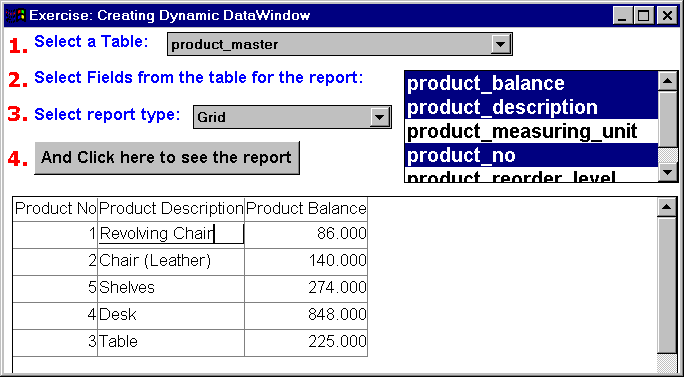
| 5. | This exercise is not
part of the project. This exercise will give you good experience in using PowerScript and
in using various functions and events. Create a window as shown below.
The functionality of this window is to allow the user to select a table owned by him/her. Upon table selection, the script should bring the columns for the selected table and display them in a list box, as shown in the step 2. You should allow the user to select multiple columns from the listbox. Allow the user to select the presentation style of the report (s)he wants. When every thing is selected, and when the user clicks on the CommandButton shown in step 4, generate the SELECT statement for the selected table depending on the columns selected and create a DataWindow dynamically and display it to the user. If the user doesn't select any column, display all columns in the selected table for the report. If the user doesn't select any presentation style, set the default to 'Grid'. Tips: Solution: - ex-12-5.zip |