| Home | Previous Lesson: Arranging Sheets Next Lesson: Displaying a Background Logo |
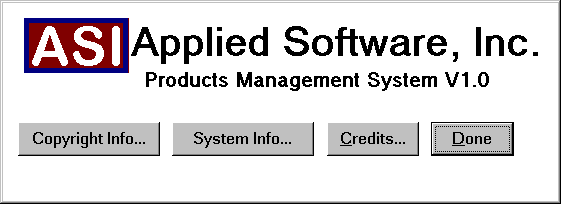
One of the options available from the Help menu is About. When selected, the following window should be displayed:
Remember, you painted "w_about" window in the Window Painter Exercises. Before we display this window to the user, we need to write some script. So, open "w_about" window and write the following script for the 'Done' button's clicked event:
// Object: cb_done in w_about window
// Event: Clicked

Close ( Parent )
This will allow the user to close the window. We can also cause the window to close down automatically after ten seconds, if it hasn't been closed by the user. To do this, we have to write two scripts; one for the open event and another for the timer event:
// Object: w_about
// Event: Open
Timer( 10 )

// Object: w_about
// Event: Timer
Close( This )
In the Open event, we are calling Timer() function. This function triggers the "Timer" event at the window, after the time specified in the Timer() function elapses. Don't get confused, there is a Timer function and a Timer event. The Timer event closes the window after the specified time elapses. The final stage is to open the window from the Help/About menu option. Write the following script in the clicked event for the menu option:
// Object: m_about in m_mdi_menu AND m_sheet_menu
// Event: Clicked
Open( w_about )
Now when you run the application, you can select 'Help/About' to bring up the w_about window, and if you don't click the 'Done' button, it will close automatically after ten seconds. Remember, you need to write Open( w_about ) to the 'Help/About' in the "m_mdi_menu" menu also.
Let's write code for other CommandButtons in "w_about" window in the later session.
| Home | Previous Lesson: Arranging Sheets Next Lesson: Displaying a Background Logo |